
Table of Contents
Pro Feature
This is a part of the Visual Portfolio Pro plugin.
Purchase the Pro plugin to access this and other advanced features.
Visual Portfolio → Settings → Watermarks. A logo is stamped onto copies of your images; galleries show the copies when a block asks for them. Original files are never changed.
Requires the PHP extensions GD and Fileinfo. The tab names the missing one (“To generate watermarks required these libraries: …”).
Settings
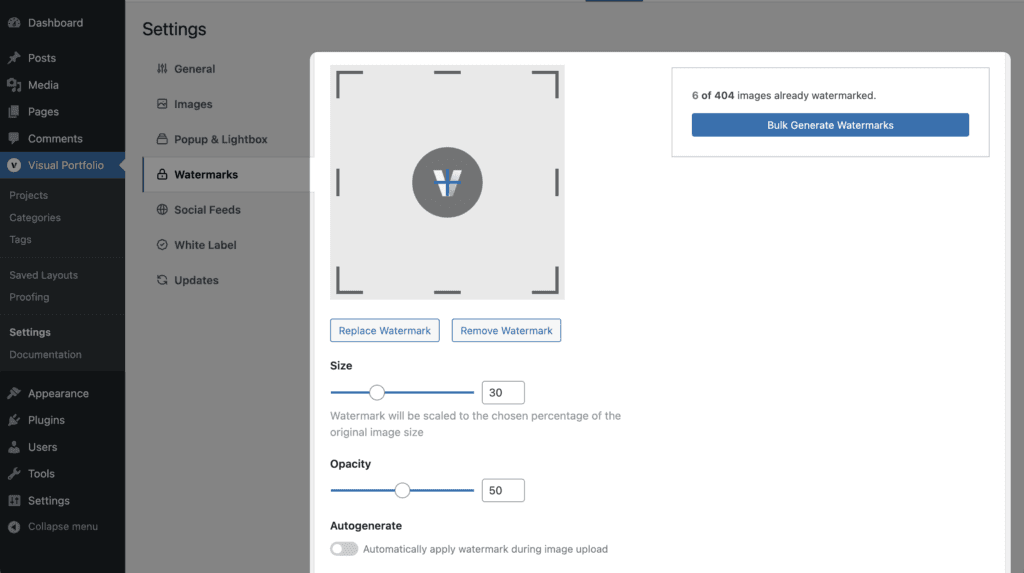
| Setting | Values | Default | Notes |
|---|---|---|---|
| Watermark | An image (PNG with transparency, JPEG, GIF or WebP) and a position: Top Left, Top Center, Top Right, Middle Left, Middle Center, Middle Right, Bottom Left, Bottom Center, Bottom Right | none, Bottom Right | Buttons Add, Replace, Remove Watermark. The preview updates live |
| Size | 1 to 100 % | 30 | Width of the watermark relative to the image |
| Opacity | 1 to 100 % | 50 | |
| Autogenerate | on / off | on | Create the copies for new uploads, and re-create all copies when the settings change |
Under the settings: “No images watermarked.” / “12 of 340 images already watermarked.” / “All images watermarked.” and a Bulk Generate Watermarks button (Bulk Regenerate once all are done). Bulk generation runs from the browser tab; keep it open until it finishes.
How copies are made
- Formats: JPEG, PNG, GIF and WebP originals. SVG, AVIF and BMP are not watermarked; the original is shown for them.
- Every registered size of the image gets a copy (full size and all thumbnails). Copies are stored under
wp-content/uploads/visual-portfolio-pro/watermarks/YEAR/MONTH/with hashed file names, so they cannot be guessed from the original’s URL. - With Autogenerate on, new uploads are processed right after WordPress creates their sizes, and a change of logo, position, size or opacity queues every image again in the background (WP-Cron).
- WebP copies made by LiteSpeed Cache’s image optimization are watermarked as well.
- Deleting an image from the Media Library deletes its copies.
Per image
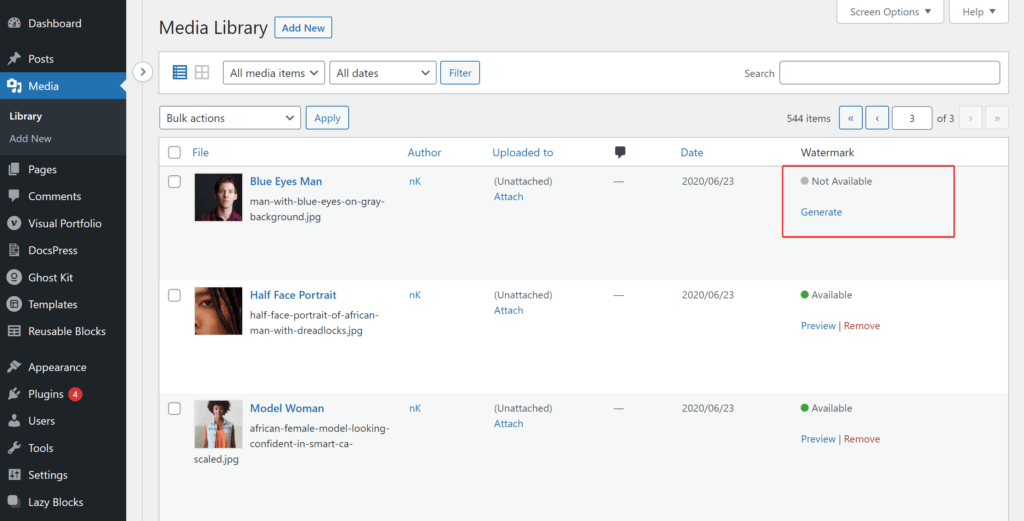
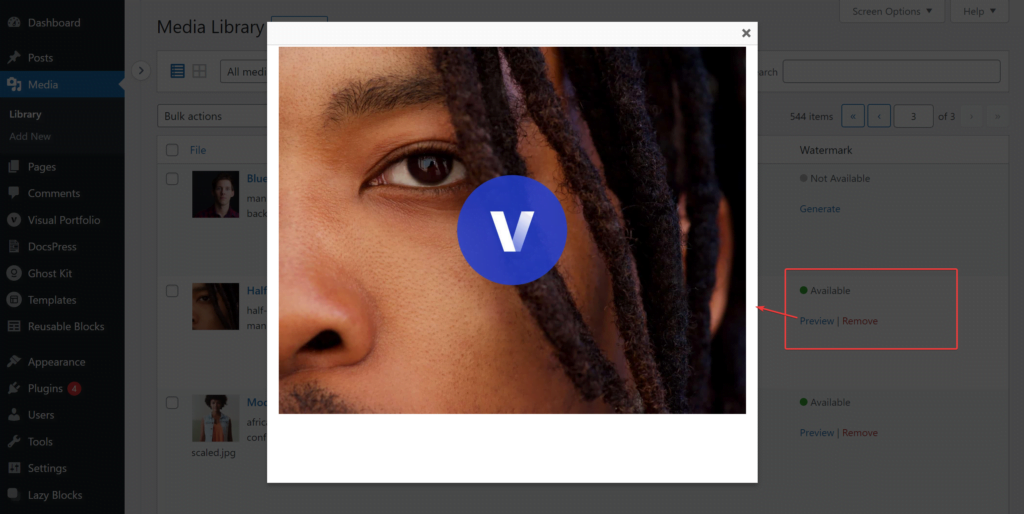
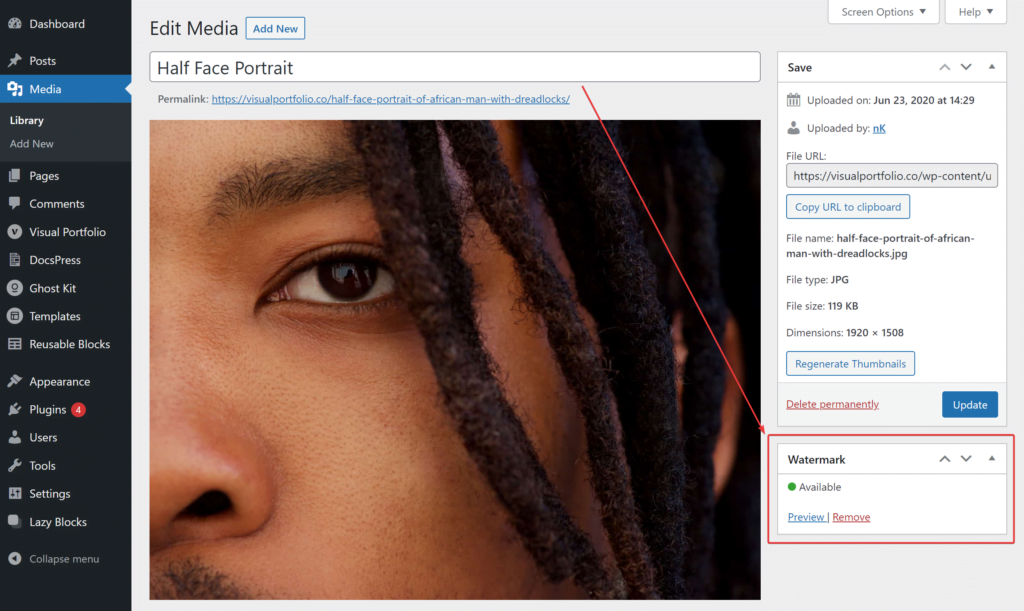
In the Media Library (list view) a Watermark column and, on the attachment screen, a Watermark box show Available / Not Available with Generate, Preview and Remove links. Use them when Autogenerate is off or to redo one image.
Show watermarked images
Switch on Add Watermarks to Photos in the block’s Protection panel (see Protection). The gallery, the srcset, the lightbox image, album images and the URL click-action link then use the copies. A copy is used only when it matches the current settings and all sizes are done; otherwise the original is shown until the copies are ready, without a warning.
Proofing galleries are created with the switch on. Social feed images cannot be watermarked.
Removing
Click Remove Watermark in the settings to stop generating; existing copies stay until removed per image or the attachment is deleted. Switching the block’s Protection option off returns the gallery to the originals immediately.