Create a visual WordPress post grid with category filters to improve archive browsing and content discovery.

Young model wearing sports hooded sweatshirt

Strong athletic man showes muscular body

Male fitness model sitting at black studio background

Fitness woman in sports clothing

Young pensive sportswoman in earphones holding bottle and looking down isolated on black

Muscular relaxing after workout

Image of focused african american sportswoman stretching her leg

Brutal man wearing hoodie on naked body.

beautiful female bodybuilder lifting barbell, isolated on black

African boxer preparing for fight

Professional swimmer taking break from training

Bearded guy with naked torso posing in dark background

Female model with muscular body

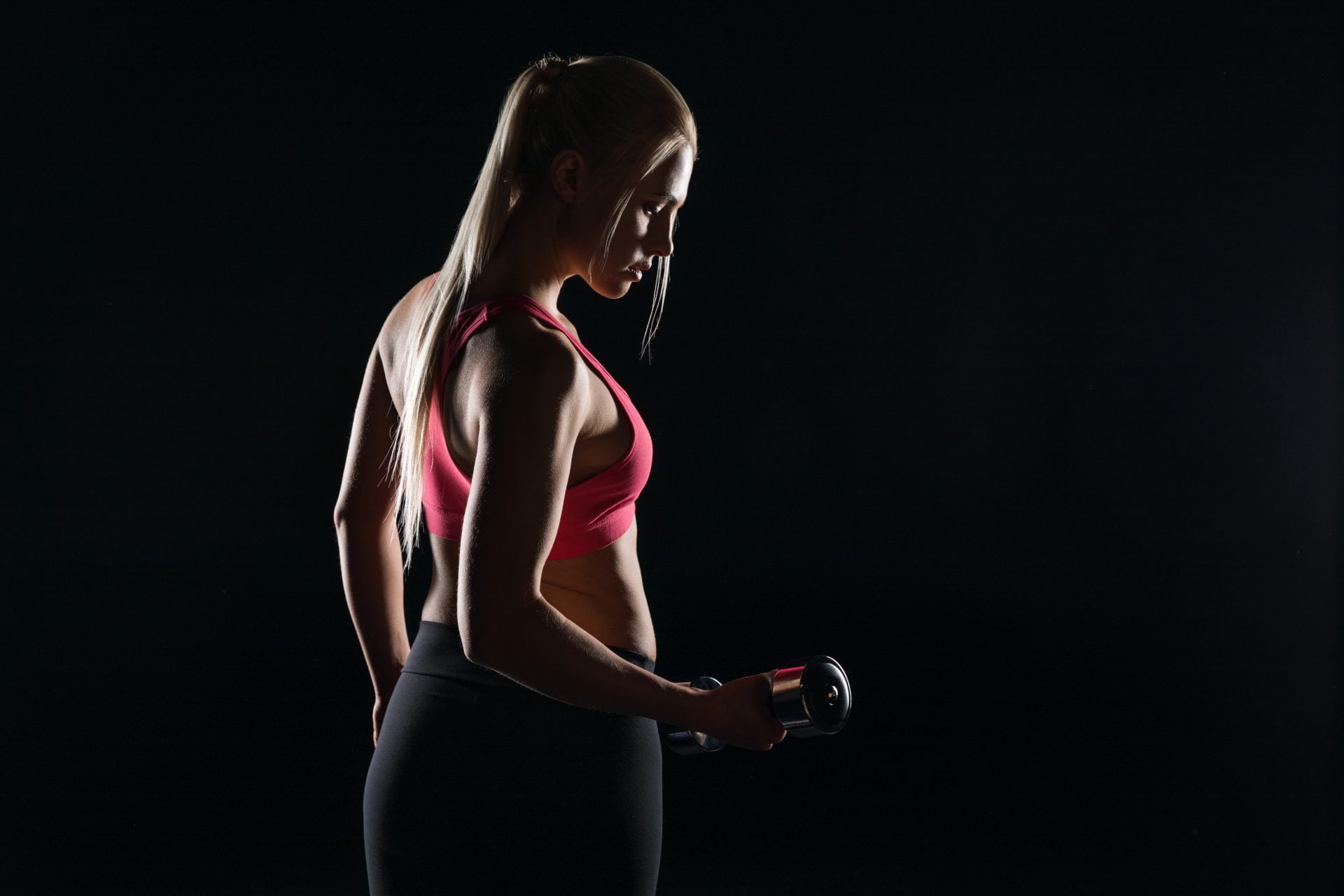
back view of young woman exercising with dumbbell isolated on black
Athletic african fitness model flexing muscles over black studio background

How a grid and a category filter work together
A grid puts every item in a cell of the same width. Rows line up, and the category row above them decides which items stay. Clicking one fetches the matching items over AJAX and leaves the rest of the page where it was. The demo above runs on the Media Library, with a filter built from the categories typed into each picture.
The other way to lay this out is masonry, where every item keeps its own height. That suits photos that are not all one shape. It is the weaker choice for cards, because a post with a title and an excerpt is easier to compare when both start on the same line. Set a Media Aspect Ratio and every image in a row shares one height.
Columns, ratios and where the categories come from
The cells come from the Grid layout panel. The category row is a Filter element you add to the layout, not an option inside it.
- Columns run 1 to 5 and default to 3. The count drops by one at each breakpoint below the width you set.
- Media Aspect Ratio offers Auto, Wide 16:9, Ultra Wide 21:9, TV 4:3, Classic Film 3:2 and Custom. Auto is the default and gives each row the height of its tallest item.
- Gap and Vertical Gap take 0 to 200 px. Gap starts at 15, Vertical Gap starts empty.
- The filter’s Style is Minimal by default and prints text links. Classic prints buttons, Dropdown prints a select.
- Display Count is off. Turned on, it prints the item count beside each category name, taken from the unfiltered query of the block.
- Media categories are matched by slug, so Cats and cats collapse into one. A post grid reads taxonomies whose name contains category, plus product_cat and jetpack-portfolio-type.
- Items Vertical Align is a Pro control with Top, Center and Bottom, Top by default. It matters with the Auto ratio, or when captions run to different lengths.
Assembling this grid in the editor
- Add the Visual Portfolio block and pick Images as the content source. Type a category into each image’s settings and press Enter.
- Open Layout, choose Grid, then set Columns, Media Aspect Ratio and Gap. Choose a skin. Classic keeps the caption under the image, Fade and Fly move it over the image on hover.
- Back in Layout, click the plus on the Start position and add Filter. Set its Style to Classic for buttons. Items Per Page lives in Content Source, General Settings, and defaults to 6.
The paid side of a post grid
Grid layout, the filter, its AJAX reloads, the Classic skin and the popup all ship in the free plugin on WordPress.org. Pro is a separate download that already contains the free plugin, so you do not install both. The split is in the free versus Pro table, and the tiers are on the pricing page. Four things on this page need a license.
- Items Vertical Align, for the row where one card is shorter than the rest.
- Custom responsive breakpoints, so the columns step down where your theme changes rather than at the stock widths.
- Filter by author, filter by a publishing date range, and Exclude Posts Without Thumbnail. These decide which posts the grid holds, not what the visitor clicks.
- Quick View, the Post URL entry in Media Object Priority, which opens a post in the lightbox as an iframe.
Three things people ask about this grid
Why does my five column grid show four?
Because the screen is 1200 px wide or narrower. Column counts are written for wide desktops, so five becomes four at or below 1200 px, three at 992 px, two at 768 px and one at 576 px. Pro puts all five widths in Settings, General, Responsive Breakpoints. The whole ladder is on the responsive behaviour page.
Why does the filter not show my tags?
The row lists category-like taxonomies only. Add the other slugs under Settings, General, Filter Taxonomies as comma separated values, for example portfolio_tag,product_tag. Terms with nothing published in them are dropped, and when no term qualifies the filter is not printed. What each content source contributes is listed on the Filter element page.
Can I build this from posts instead of images?
Yes. Switch the content source to Posts, pick the post type, then narrow it under Taxonomies. Taxonomies Relation is OR by default, so a post in either term still appears. On an archive template, Current Query prints whatever the page was already asking for. Save the block as a Saved Layout and the same grid drops into a page builder through its own widget. The options are on the Posts content source page.