A WordPress masonry gallery with AJAX Load More, all in the free plugin. It suits photos of mixed shapes, since each keeps its own height uncropped.

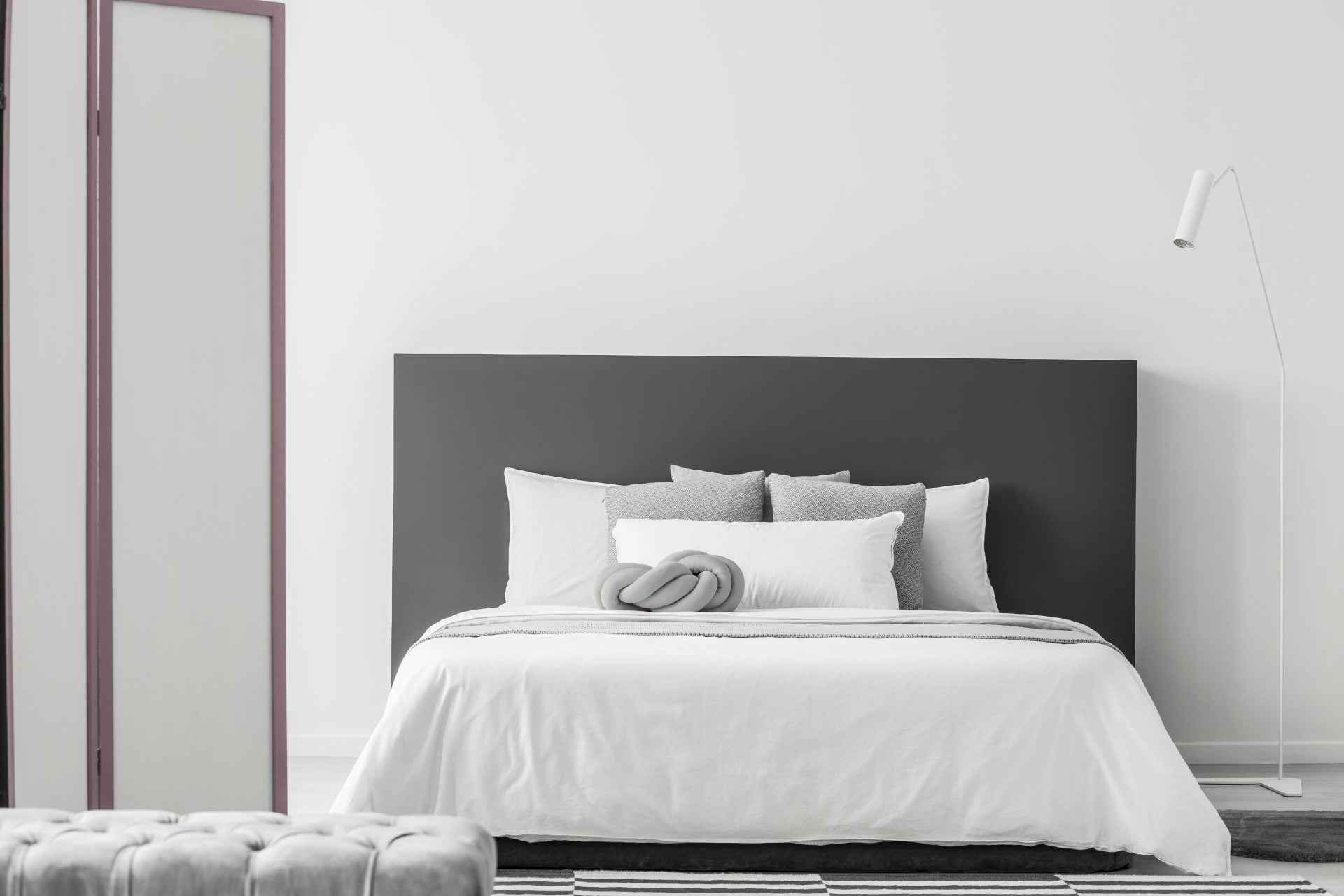
Minimal bedroom interior
White elegant Christmas home decoration
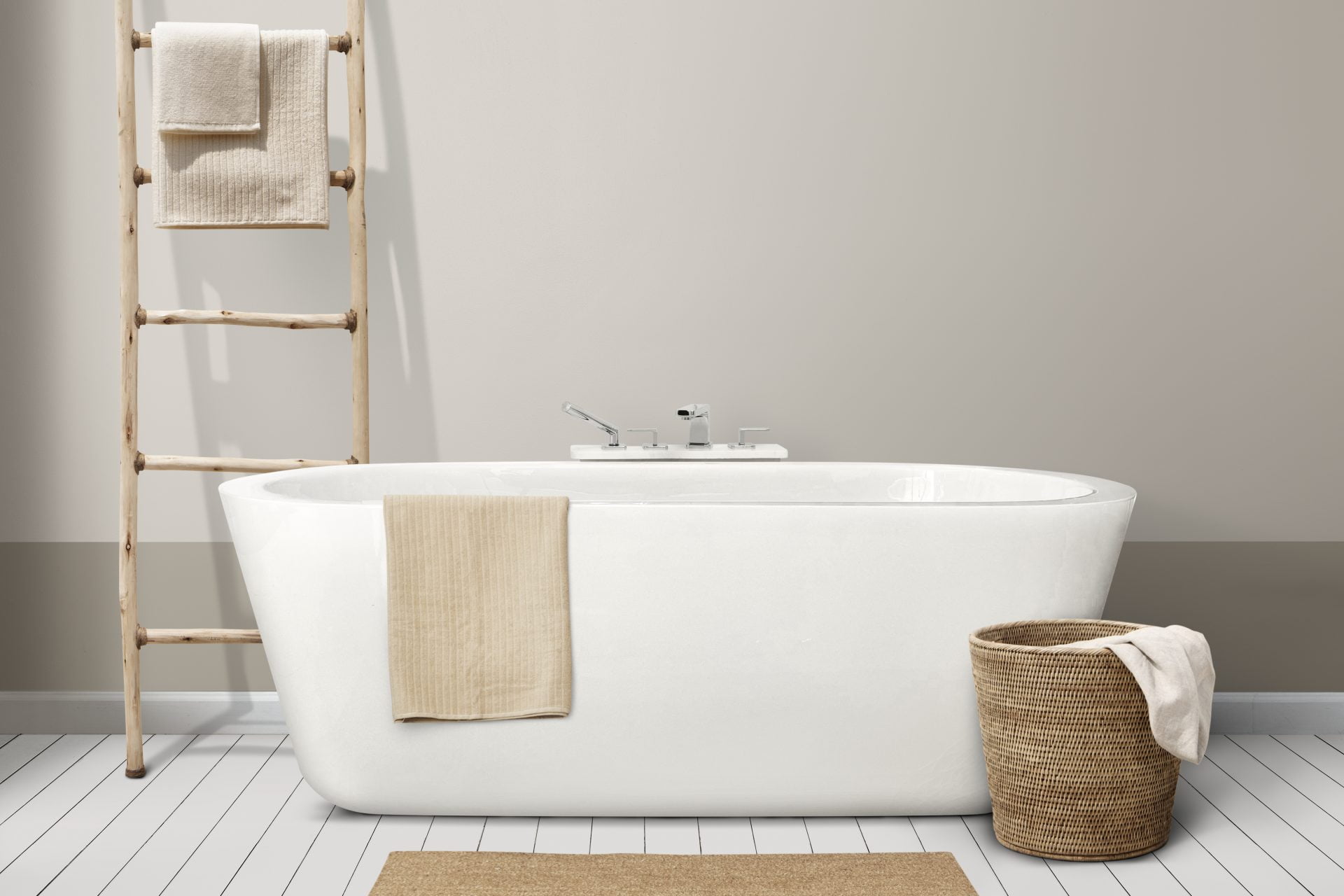
Minimal bathroom interior design with wooden furniture
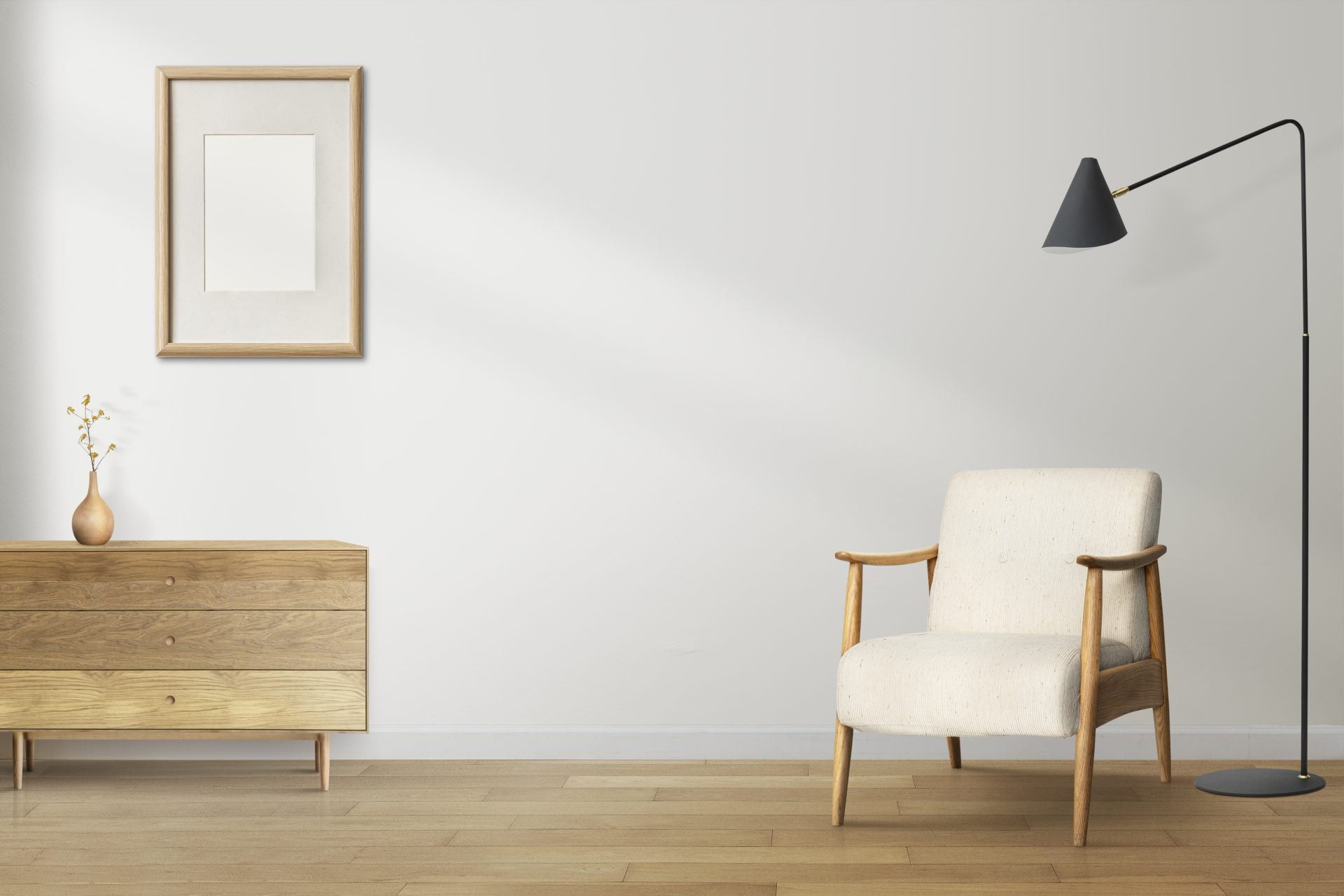
Living room zoom background, minimal home interior
Minimal gray printed cushion on a bean bag minimal interior desi
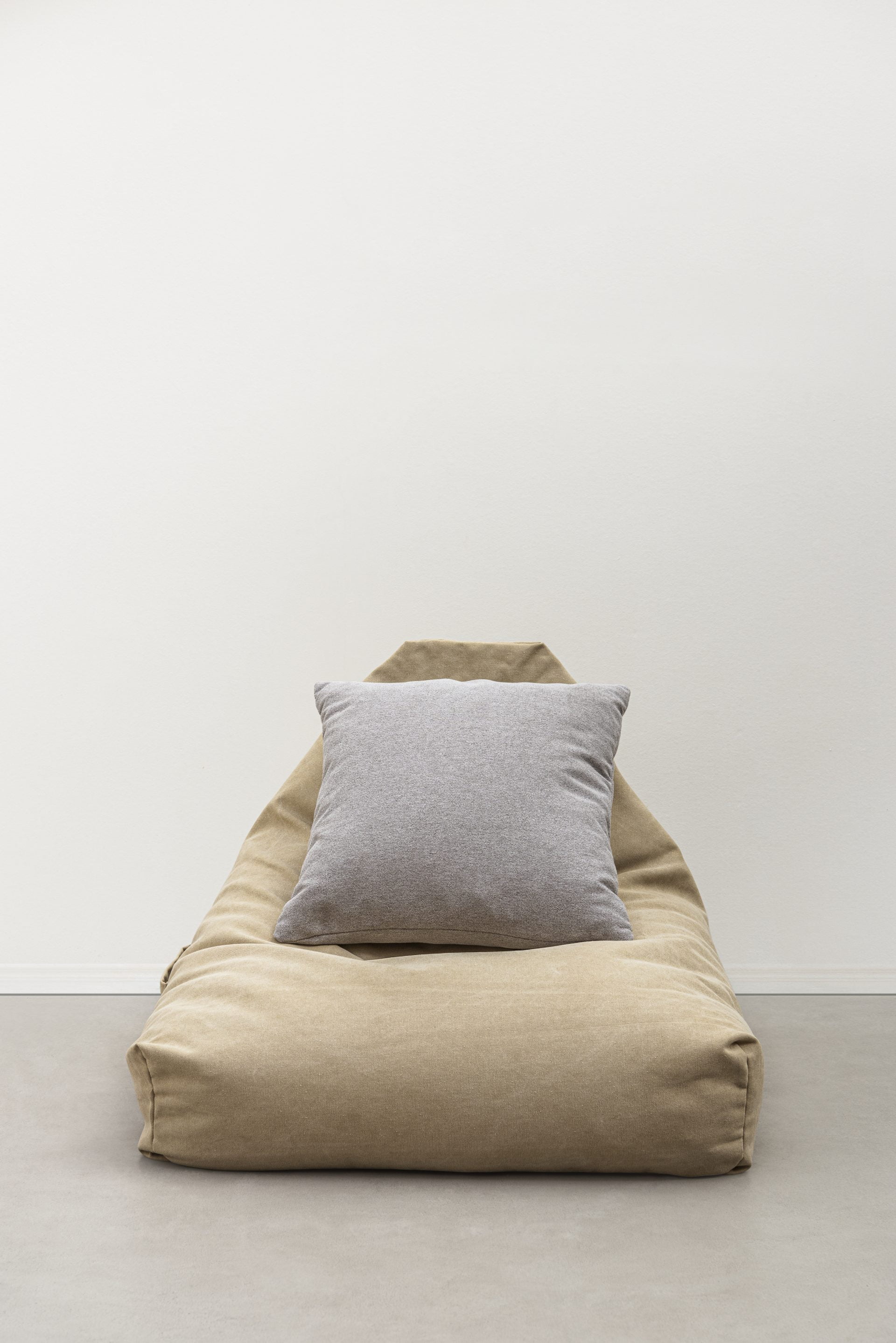
3D illustration decorate and interior minimal style
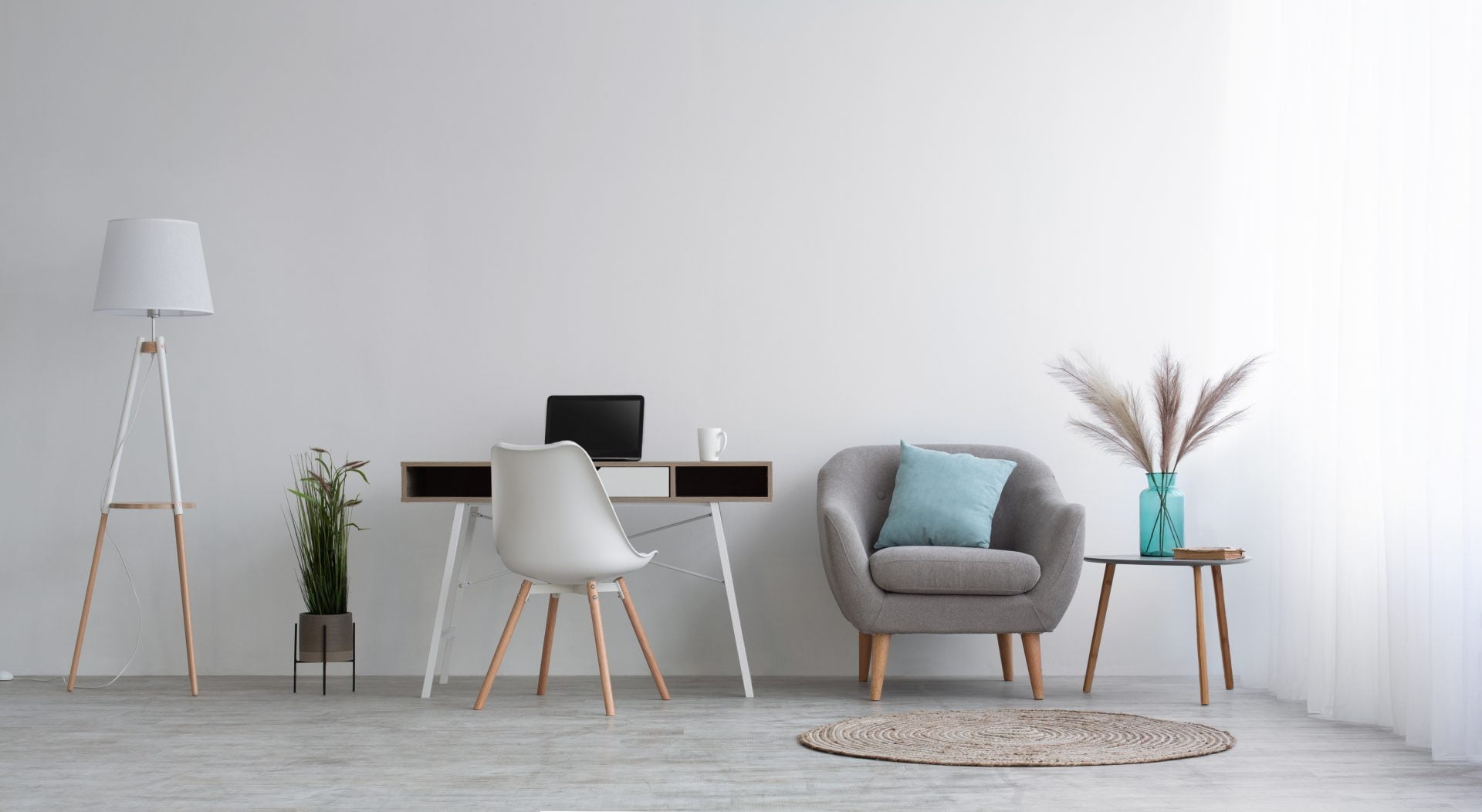
Cozy minimal workplace, remote work at home during covid-19 quarantine
What masonry does with mixed image heights
Every image keeps the height it was uploaded with, and the columns fill up at their own pace. The bottom edge comes out ragged. Nothing is cropped while Media Aspect Ratio stays on Auto, so a portrait shot sits next to a panorama and both are shown whole. That straight bottom line is what you trade away.
Pick it when the pictures were not shot to one shape. Phone photos, scans and tall screenshots fight a grid, which crops everything to one ratio. A justified gallery keeps images whole as well, by scaling them to fill rows of one height. Masonry fixes the columns and varies the heights. Justified fixes the heights and varies how many images share a row.
Columns, gaps and page size
Everything that shapes the columns is in the Layout panel. Page size lives in Content Source instead, and the masonry layout documentation carries the full table.
- Columns, 1 to 5, default 3. At 1200 px and below the count drops by one at each breakpoint, down to a single column at 576.
- Gap and Vertical Gap, 0 to 200 px. Gap defaults to 15. Vertical Gap starts empty and follows Gap until you type a number. The demo uses 30 and 20.
- Media Aspect Ratio, Auto by default. Any other value crops every image to that shape and turns the masonry into a grid.
- Horizontal Order, off by default. It tries to hold items in left to right order, and an item that misses the next slot still lands where it fits.
- Items Per Page, in Content Source, default 6. Seven items are on the page above, and Load More appends the rest.
- Image size follows the column count. One to three columns request Extra Large (VP), four and five Large (VP).
How the gallery above was built
- Insert the Visual Portfolio block and choose Media as the source. Click Add Media, pick the photos, then Select. Order by starts on Manual, so the order is the one you drag them into.
- Open Layout and pick Masonry. Leave Media Aspect Ratio on Auto, keep Columns at 3, then set Gap to 30 and Vertical Gap to 20 for the spacing above.
- In Skin choose Classic and set Display Date to Human Format, which prints 5 years ago. Add Pagination below the items with Type on Load More, then publish.
Saved as a layout, the same gallery goes on any other page through the Visual Portfolio Saved Layout block, chosen from the Saved Layouts list.
Masonry is free, and what Pro adds
Nothing in the gallery above needs a license. The masonry layout, the Classic skin, the lightbox and AJAX pagination all ship in the free plugin. Pro is that same plugin with the extra modules built in, not an add-on beside it. The free and Pro comparison has every line; the pricing page has the tiers.
- Responsive Breakpoints are fixed at 320, 576, 768, 992 and 1200 px in free. Pro moves them under Settings, General, which moves the whole column ladder with them.
- Transform and Filter on the item image are Pro, on hover as well as at rest. Zoom is 5%, the moves 2%, and seventeen filter presets sit next to custom brightness, contrast and blur.
- Hover media is Pro. A second image or a local video plays while the pointer is over the item, and an animated GIF restarts as it cross-fades in.
- Caption Move is the one Pro skin. Classic, Fade, Fly and Emerge are free, though the Typography and Dimensions panels inside them are not.
Masonry questions from support
Why is there a gap under each image?
That space is the caption. Classic puts the title, categories and date under the image, so an item is as tall as its photo plus its text. Fade, Fly and Emerge draw the same text over the image instead. If the gap sits between items, check Vertical Gap, which matches Gap while it is empty, as the masonry gap answer explains.
Where does the text under an image come from?
From Items Title Source and Items Description Source in Media Settings. Both start on Custom, which prints what you type into the block. Set either to Image Title, Caption, Alt or Description and the text comes from the attachment, so a Media Library edit reaches every gallery reading it. See Media Library titles and captions.
How do I reorder the images?
Drag them in the gallery list under the Add Media button. Order by is on Manual by default, and the list shows 18 images at a time behind Show More and Show All. The other orders are item and image title, description, caption, alt, upload date and random. See reordering a media gallery.