
Option 1: the Portfolio page
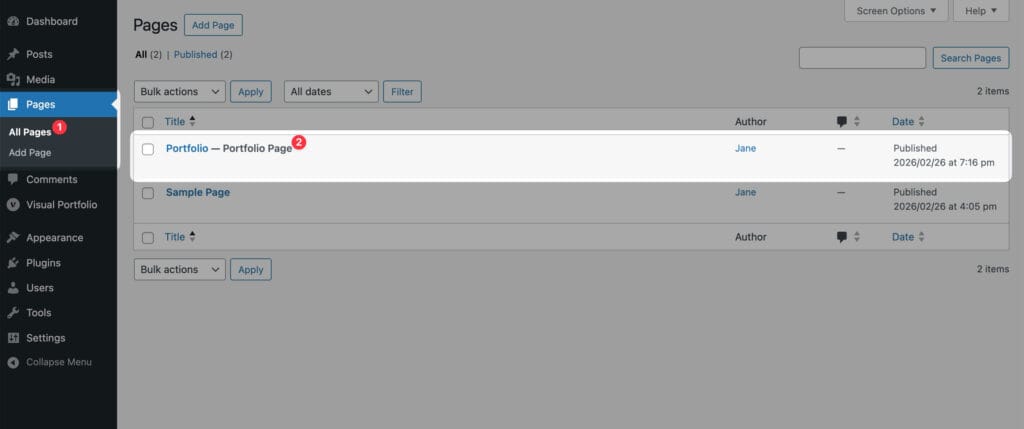
- Go to Visual Portfolio → Projects → Add New Project.
- Add a title, content and a featured image. The featured image is what galleries show.
- Assign Portfolio Categories if you want a filter.
- Publish, then open the Portfolio page of your site. The new project is listed there.
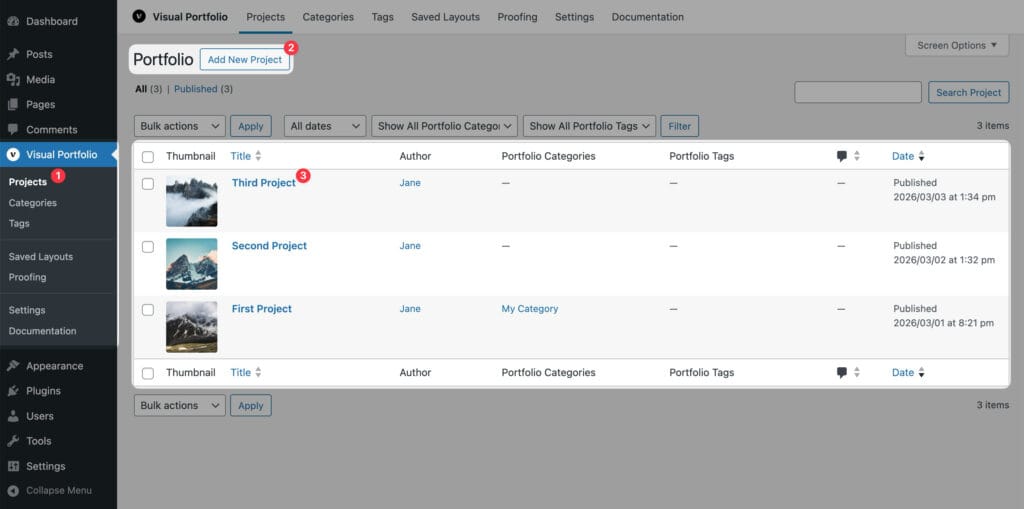
The Portfolio page is an ordinary page with a Visual Portfolio block whose content source is Current Query. Edit the page to change the layout, skin, filter or pagination. The number of projects per page is Archive Page Items Per Page in Settings → General.
Option 2: a gallery on any page
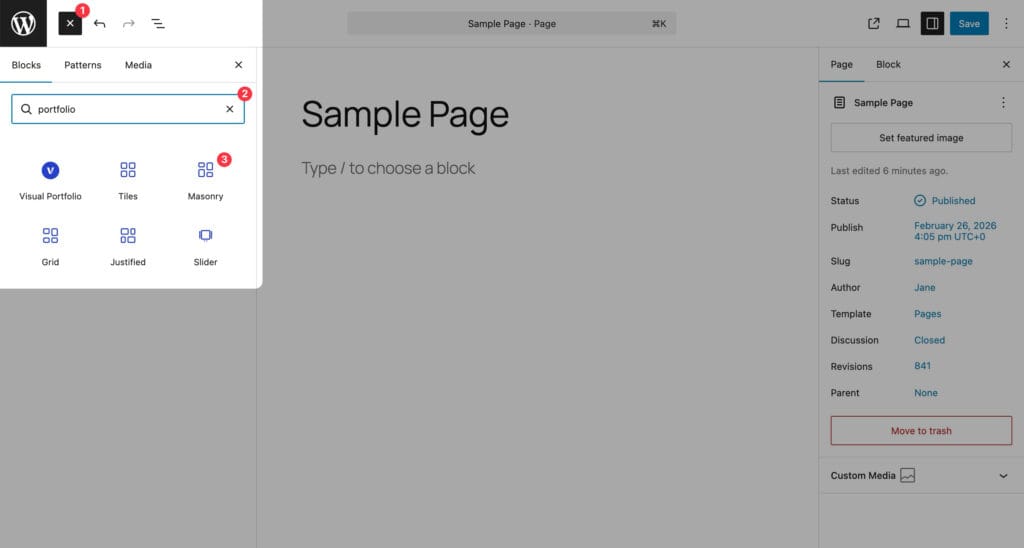
- Edit a page or post and insert the Visual Portfolio block.
- Work through the setup wizard that opens, or click Skip Setup to leave it with the defaults.
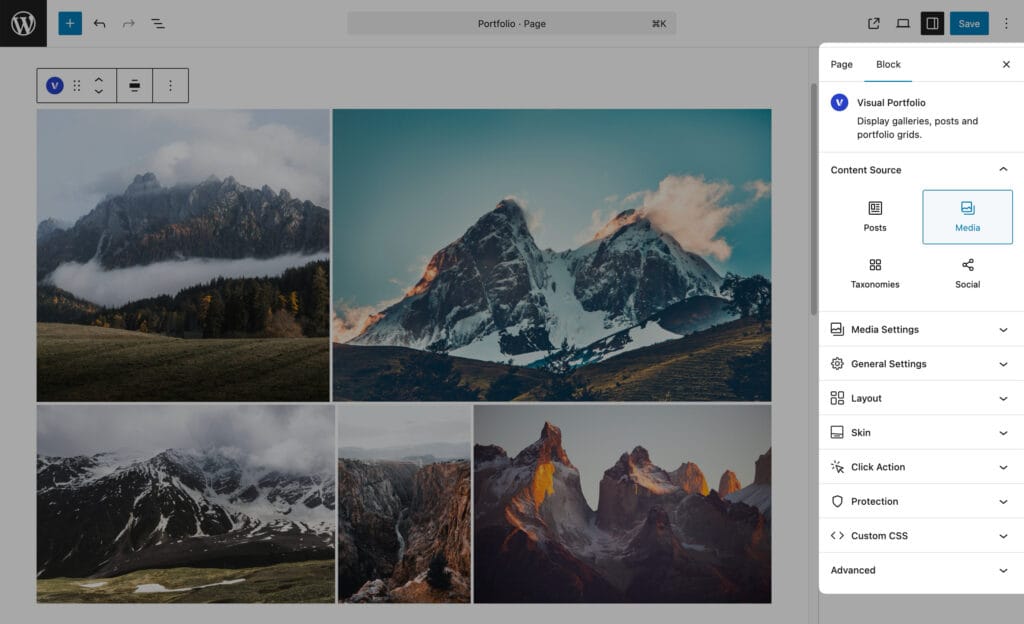
- Adjust anything in the block sidebar: Content Source, Layout, Skin, Click Action, Custom CSS, and with Pro, Protection.
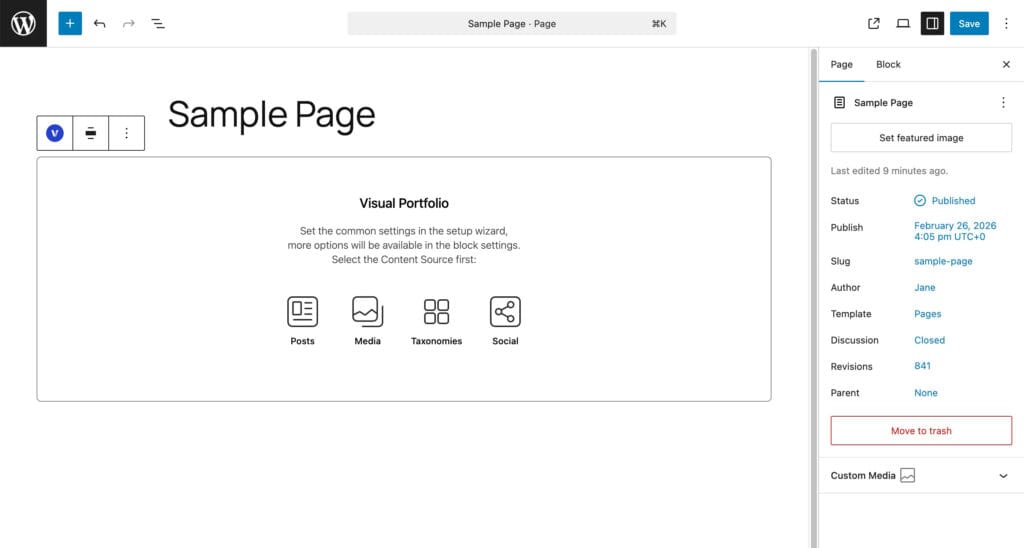
The wizard has three steps.
- Step 1 asks for the Content Source. Posts (any post type, including Projects), Media (images from the Media Library, which you pick now), or, with Pro, Taxonomies and Social.
- Step 2 asks for a Skin. Classic, Fade, Fly or Emerge.
- Step 3 offers a Filter, a Pagination and the Popup Gallery (lightbox).
The wizard sets the block to wide alignment. Media galleries created through it show all images on one page (Items Per Page: All Items) and open images in the lightbox; when more than 40 images are picked, it sets 40 per page with infinite scroll instead.
What to read next
- Content Source for what each source can do.
- Layout, Skin and Layout Elements for the look.
- Click Action for what happens on click, and Settings → Popup & Lightbox for the lightbox.