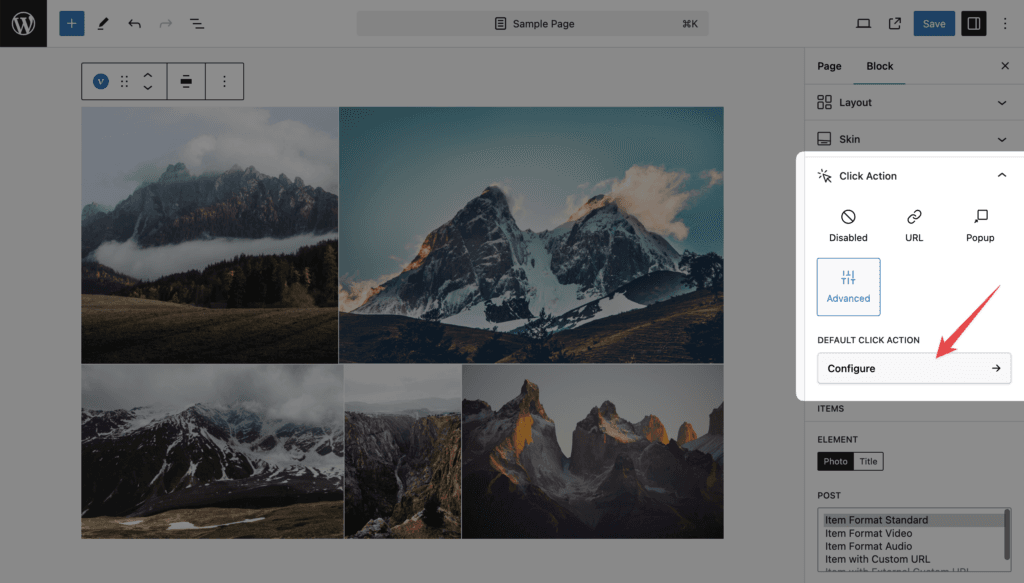
Block settings → Click Action. Decides what happens when a visitor clicks a gallery item. Four options: Disabled, URL (default), Popup, Advanced (Pro).
The click target depends on the skin. Classic and Emerge make both the image and the title clickable. Fade, Fly and Caption Move make only the image (with its overlay) clickable.
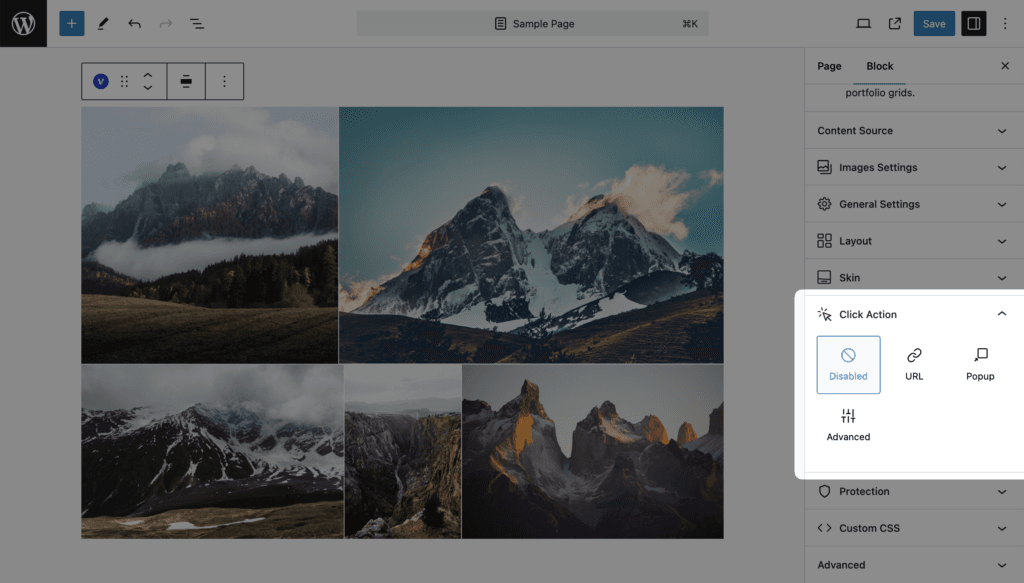
Disabled
Items are not links. Nothing happens on click.
URL
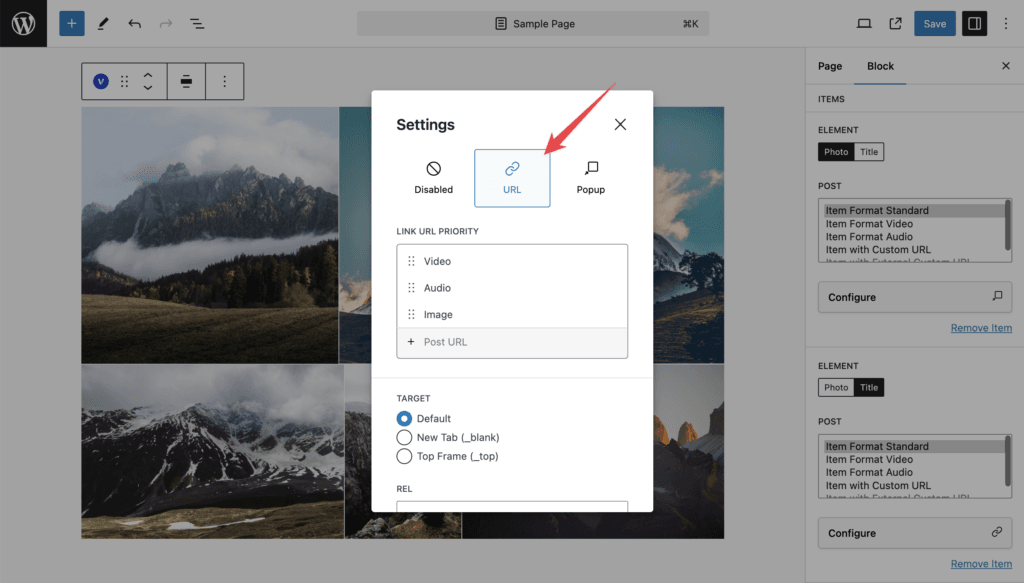
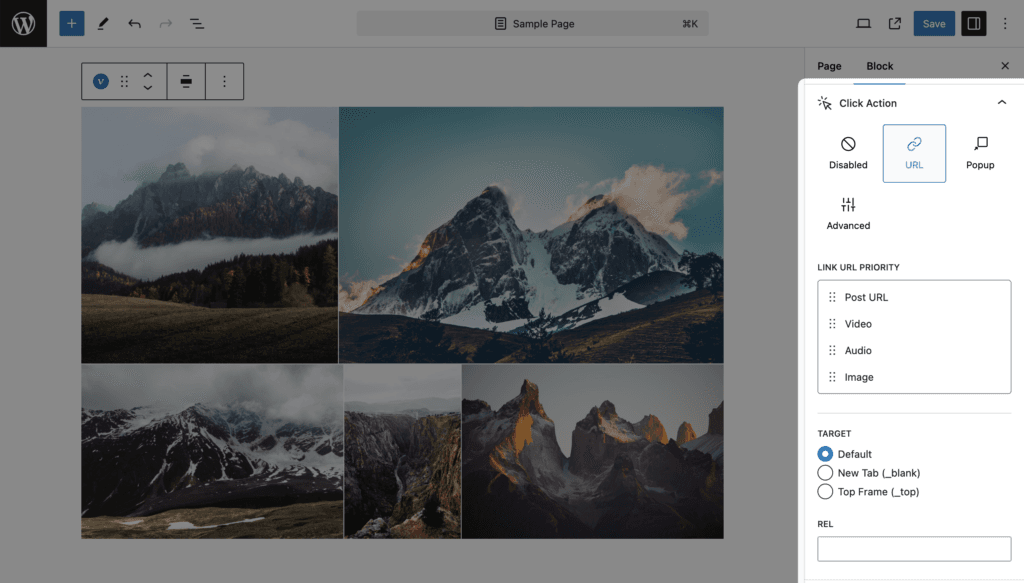
The item links somewhere. Where depends on the content source:
| Source | Default link |
|---|---|
| Posts | The post permalink |
| Media | The custom URL from the image settings if set, otherwise the full-size image file. A video item without a custom URL links to its Video URL |
| Taxonomies (Pro) | The term archive page |
| Social (Pro) | The original post on the social network |
| Option | Values | Default | Notes |
|---|---|---|---|
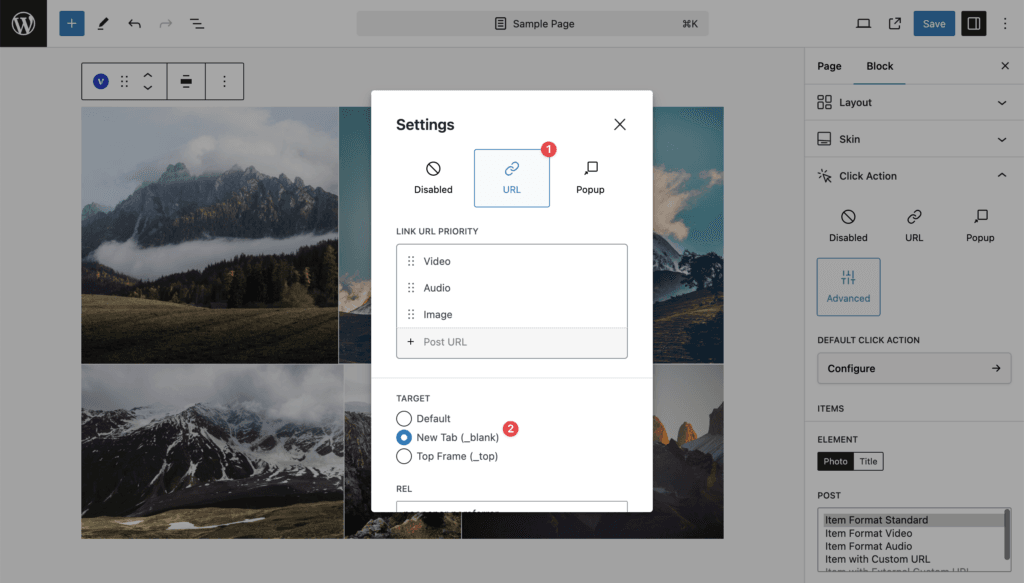
| Link URL Priority (Pro) | Sortable list: Post URL, Video, Audio, Image. Entries can be switched off | Post URL, Video, Audio, Image | The first entry the item has data for wins. Put Image first to link every item to its image file even when it has a video |
| Target | Default, New Tab (_blank), Top Frame (_top) | Default | Selecting New Tab fills Rel with noopener noreferrer. Top Frame is for galleries inside iframes |
| Rel | Text | empty | Written as the rel attribute of the link |
Popup
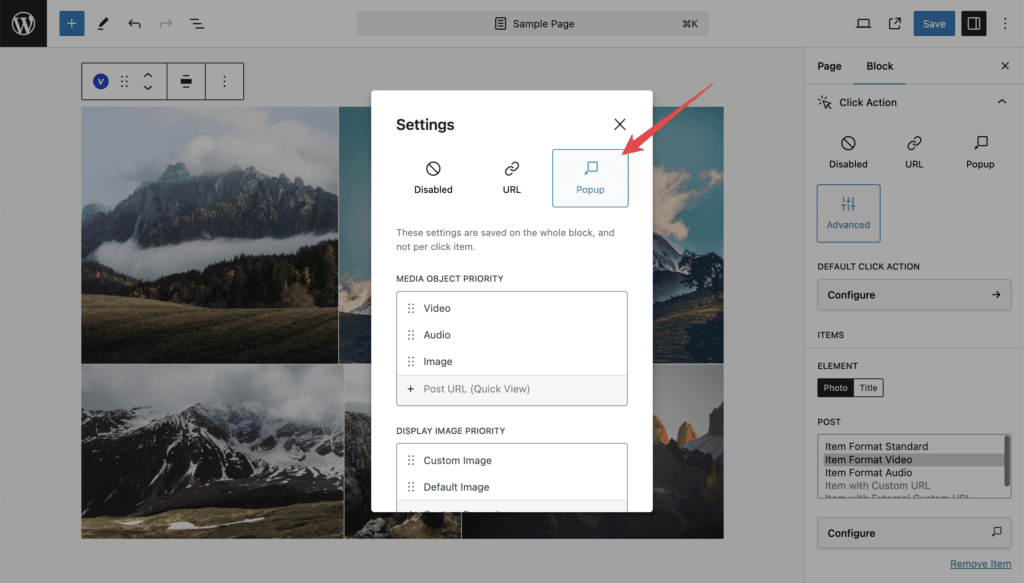
Items open in the lightbox. Which lightbox script is used (PhotoSwipe or Fancybox) and its buttons are global settings in Settings → Popup & Lightbox; this panel only chooses what each item shows.
An item opens in the lightbox when it has something to show:
- a Media item without a custom URL (image, video URL, audio URL, album);
- a post with a featured image, or with the Video format and a Video URL, or (Pro) with the Audio format, the Gallery format, or a custom media set in the post sidebar.
A Media item with a custom URL in its settings always links out and never opens the lightbox, whatever this panel says.
| Option | Values | Default | Notes |
|---|---|---|---|
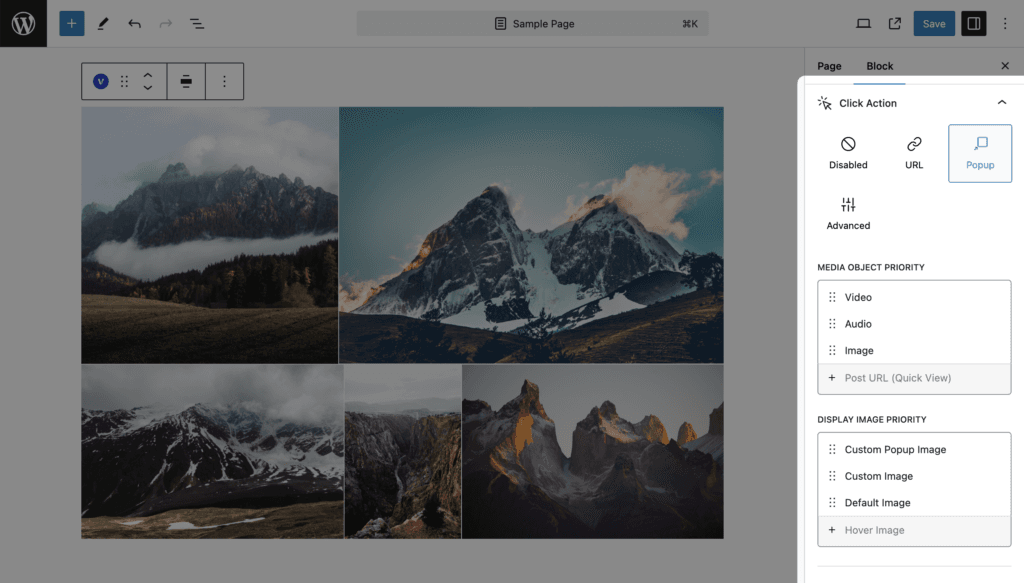
| Media Object Priority (Pro) | Sortable: Video, Audio, Album, Image, Post URL (Quick View). Entries can be switched off | Video, Audio, Album, Image | The first entry the item has wins. Post URL (Quick View) opens the post itself inside the lightbox as an iframe; it works for URLs on your own site only. Move it first to open every post in Quick View |
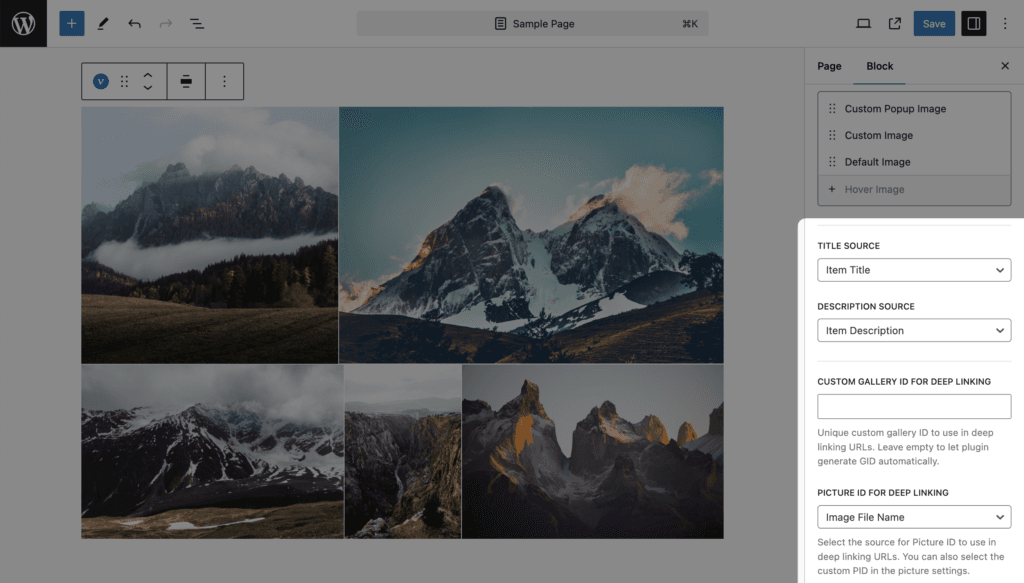
| Display Image Priority (Pro) | Sortable: Custom Popup Image, Custom Image, Default Image, Hover Image | Custom Popup Image, Custom Image, Default Image | Which picture the lightbox shows for an image slide. Custom Popup Image is the per-item lightbox image; Custom Image is the post’s Custom Media (Normal); Default is the featured image or media item; Hover Image is the hover media, used only when it is an image |
| Title Source | None, Image Title, Image Caption, Image Alt, Image Description, Item Title, Item Description, Item Excerpt, Item Author | Image Title | “Image …” values read the attachment in the Media Library. “Item …” values read the gallery item (post title, post excerpt, the item’s own title from the image settings, and so on) |
| Description Source | The same list | Image Description | Shown under the title in the lightbox |
| Custom Gallery ID for Deep Linking (Pro) | Text | empty | Used as gid in deep links instead of the generated block ID. Shown only when Deep Linking is on in Settings → Popup & Lightbox |
| Picture ID for Deep Linking (Pro) | Position Number, Image File Name, Image Title, Image Alt, Item Title | Position Number | Used as pid in deep links. A Custom Picture ID entered in the image settings overrides it |
Deep link format. With Deep Linking on, opening a slide changes the address to https://site.com/page/#&gid=GALLERY&pid=PICTURE. Sharing that address opens the page with the lightbox on that slide. On a paginated gallery the page number is added (?vp_page=2). The browser Back button closes the lightbox.
New galleries created through the setup wizard use Item Title and Item Description as sources for Media and Social galleries, and Image Title and Image Description for Posts.
Advanced
Pro Feature
This is a part of the Visual Portfolio Pro plugin.
Purchase the Pro plugin to access this and other advanced features.
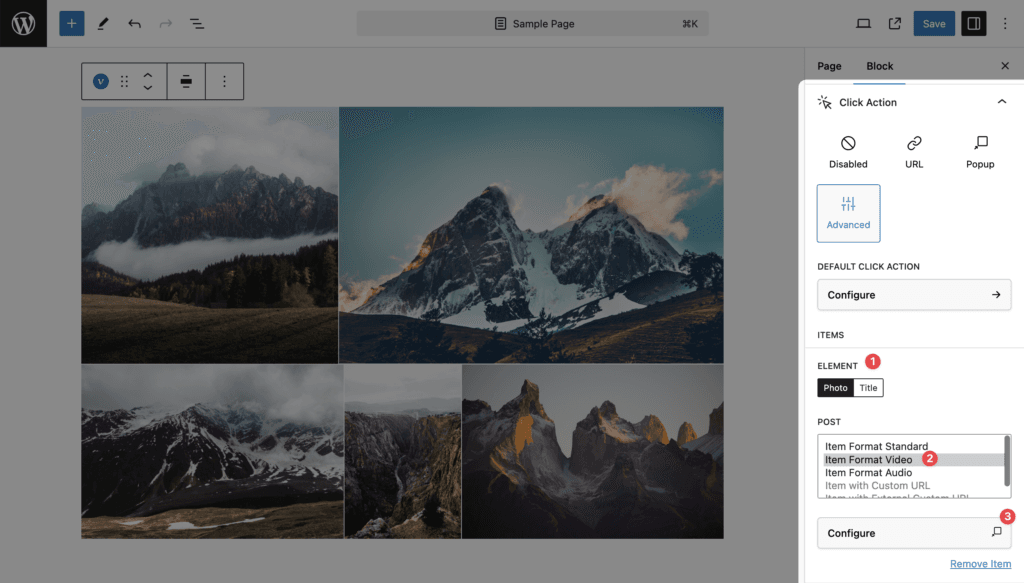
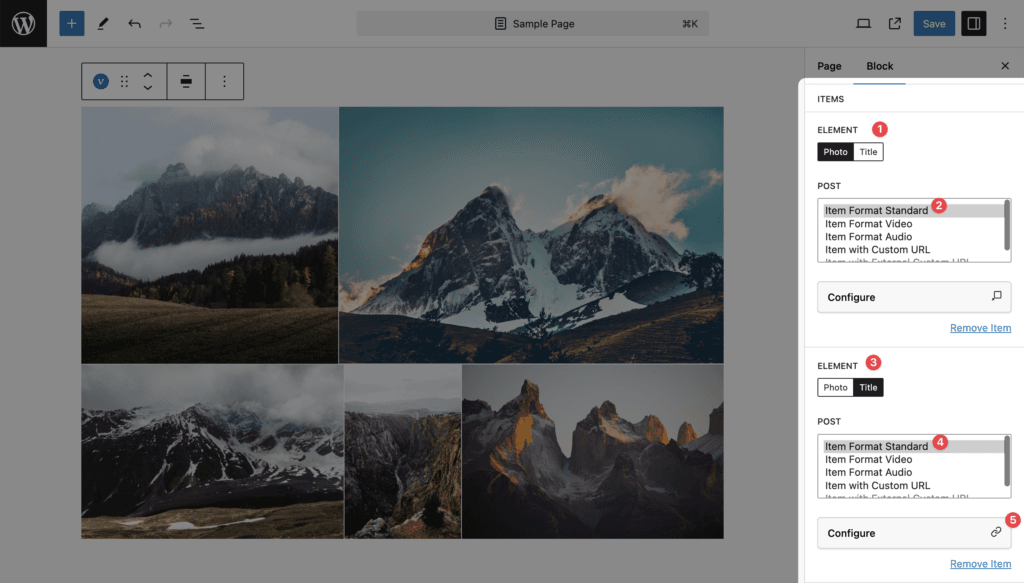
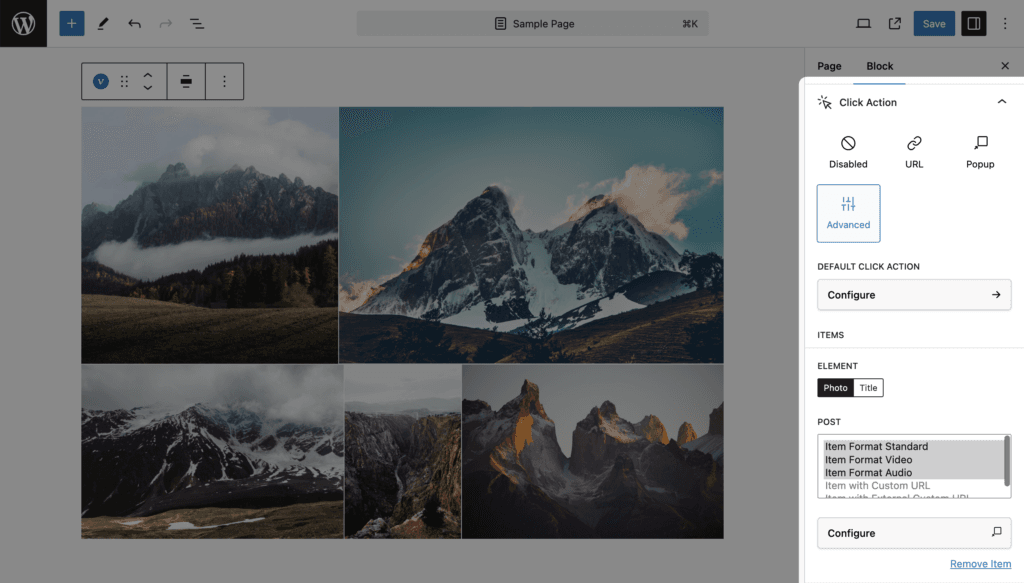
Advanced combines all three actions in one gallery by rules. Each rule says: for this element (Photo or Title), for items of these formats, do this (Disabled, URL with its own priority, target and rel, or Popup).
- Default Click Action. Used for any click that no rule matches. Click Configure to set it up in the same modal as a normal click action.
- Items. One row per rule: Element (Photo, Title), the format list, Configure, Remove. The + button adds a row with the next unused element and format combination; it disappears when every combination is used. A duplicate combination shows “These settings already exist. Please choose another combination of settings.” A Title rule on the Fade or Fly skin shows “For the selected styles, clicking on the Title is not possible. Please use the Photo element or remove this item.” because those skins have no clickable title.
Formats you can match, per content source:
| Source | Formats |
|---|---|
| Posts | Post with No-Image, Post Format Standard, Post Format Image, Post Format Video, Post Format Audio, Post Format Gallery |
| Media | Item Format Standard, Item Format Video, Item Format Audio, Item Format Gallery, Item with Custom URL (URL on your domain), Item with External Custom URL |
| Social | Post with No-Image, Post with Image, Post with Video |
| Taxonomies | Term with No-Image, Term with Image |
Rules are stored per content source. Switching the source shows that source’s rules.
Popup settings (Title Source, Description Source, Media Object Priority, Display Image Priority, deep-link IDs) are shared by the whole block. They are set once, inside any rule that opens a popup, and apply to every popup rule. The panel says so: “These settings are saved on the whole block, and not per click item.”
When you switch to Advanced the first time, a starter rule set is created: photos of standard, video and audio items open in the popup; items with a custom URL follow it (external ones in a new tab); everything else follows the Default Click Action (URL with priority Video, Audio, Image).
Example
Goal: video items open in the lightbox, standard items open the post in the same tab, everything else opens in a new tab.
- Set Click Action to Advanced.
- Add an item: Element Photo, format Post Format Video, Configure → Popup.
- Add an item: Element Photo, format Post Format Standard, Configure → URL, Target Default. Repeat for Element Title if the skin has a clickable title.
- Configure Default Click Action → URL, Target New Tab.