A WordPress Flickr feed that imports photos from an account, gallery, group or album into justified rows. Unlike an embed, the files stay on your server.
Photos from Kazuki Inoue published on Flickr platform – https://www.flickr.com/photos/123124434@N05/albums/72177720324116989/ using our Flickr social integration.

関宿 2026 1
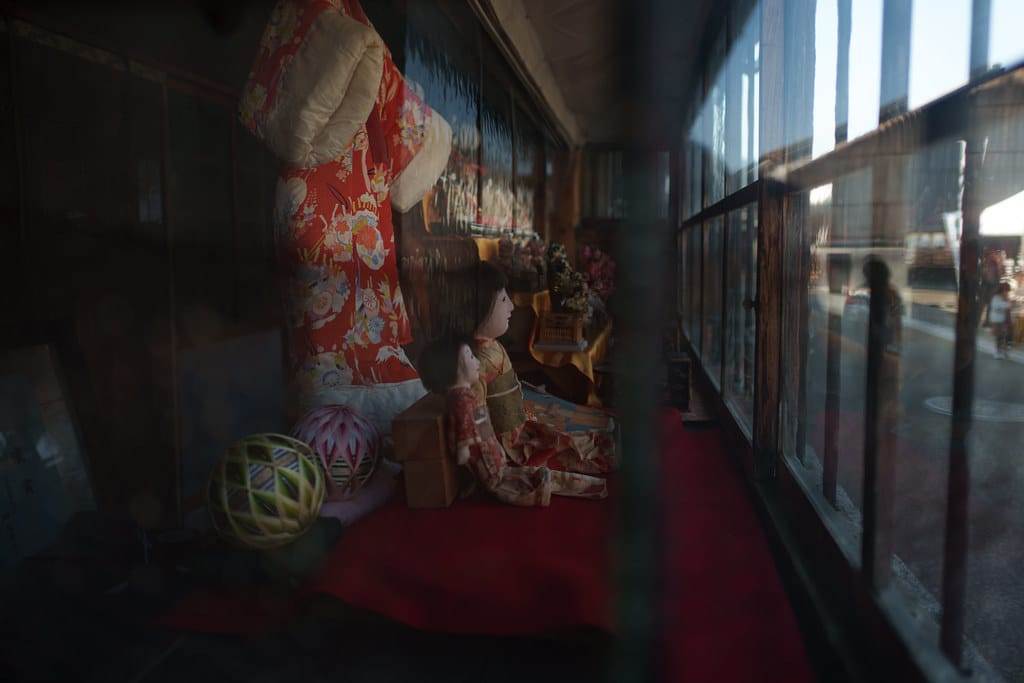
関宿 2026 3
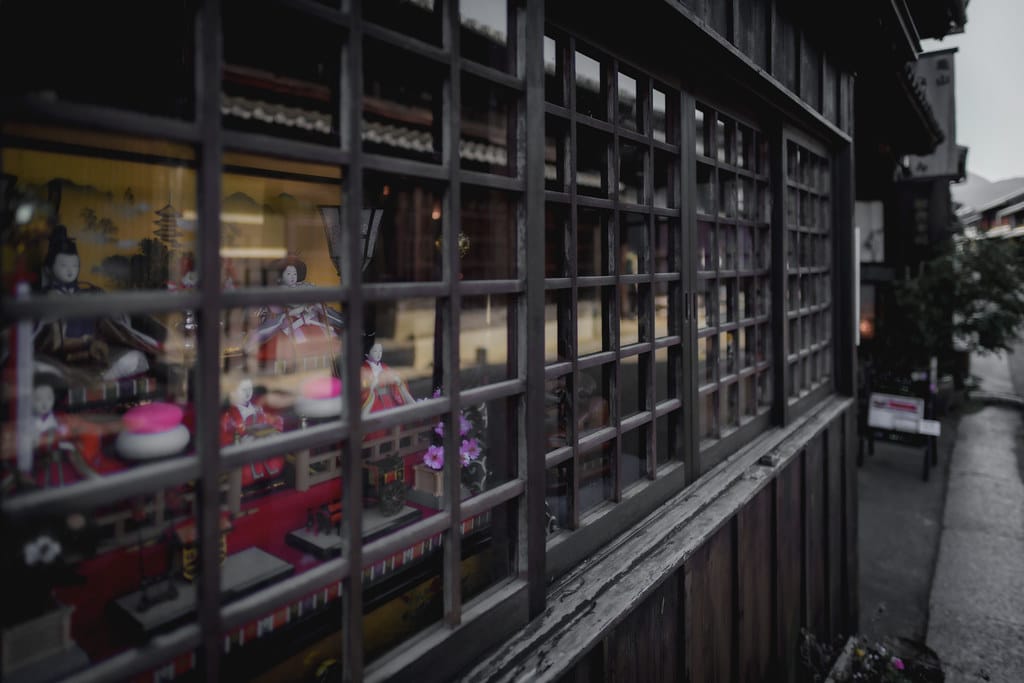
関宿 2026 2
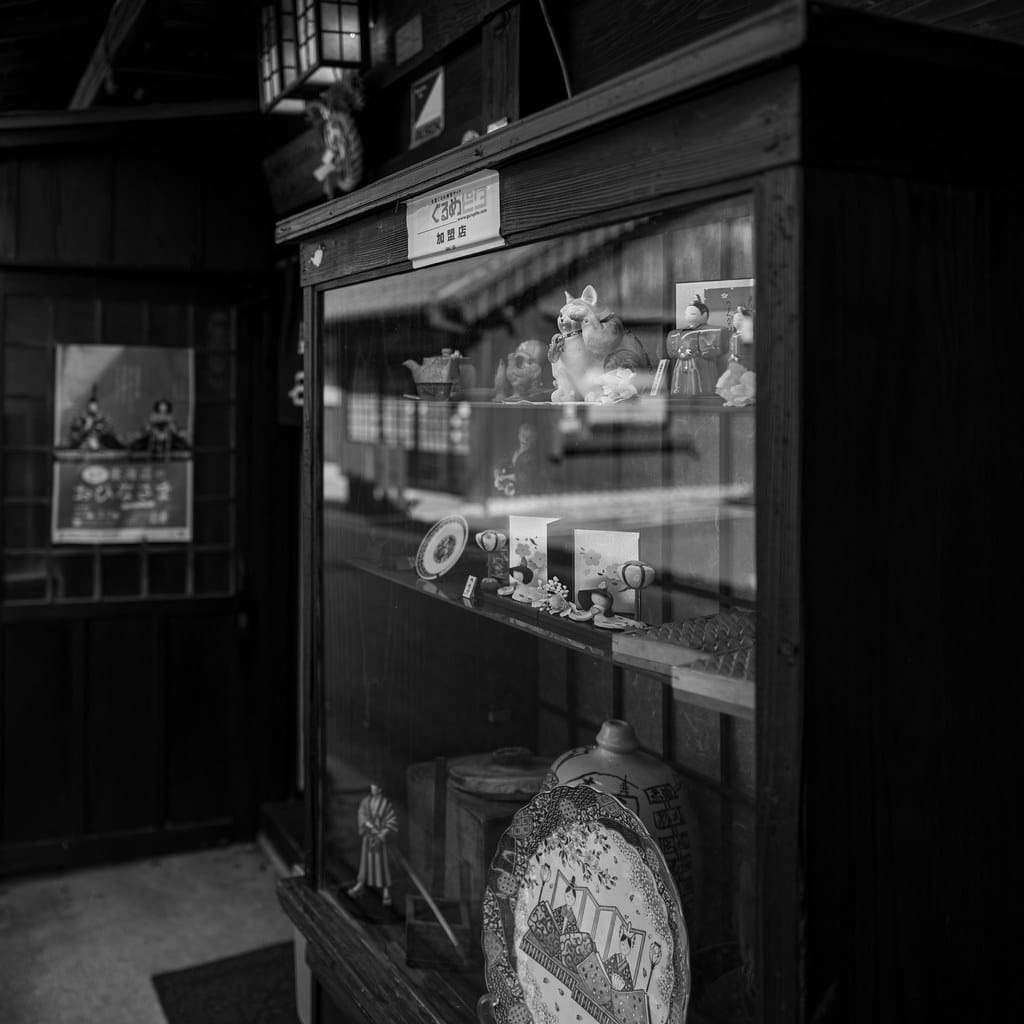
関宿 2026 4
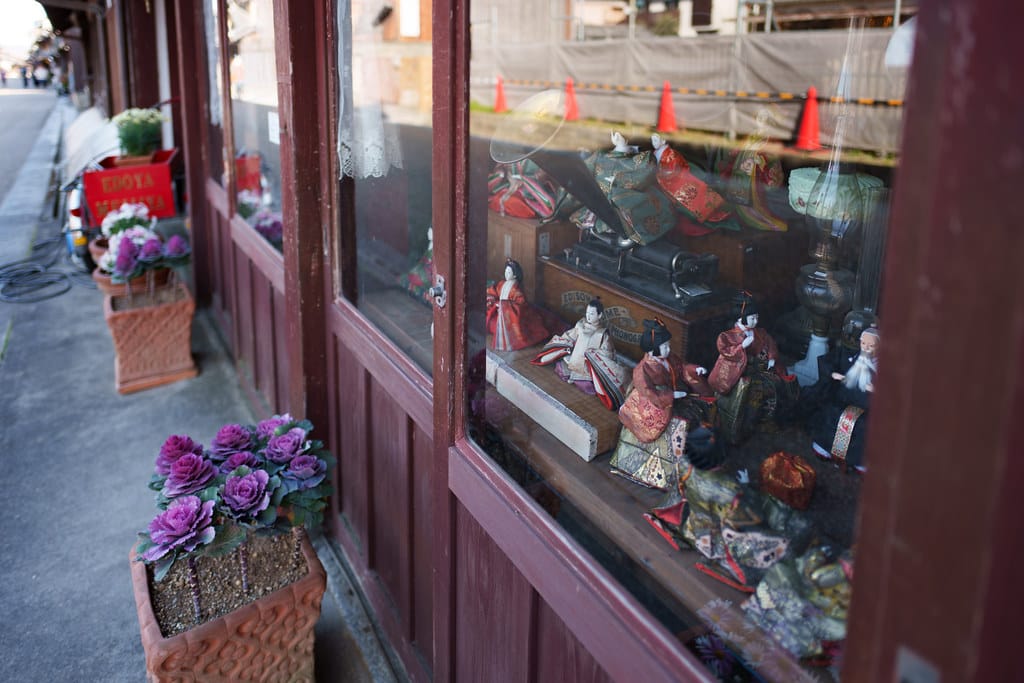
関宿 2026 5
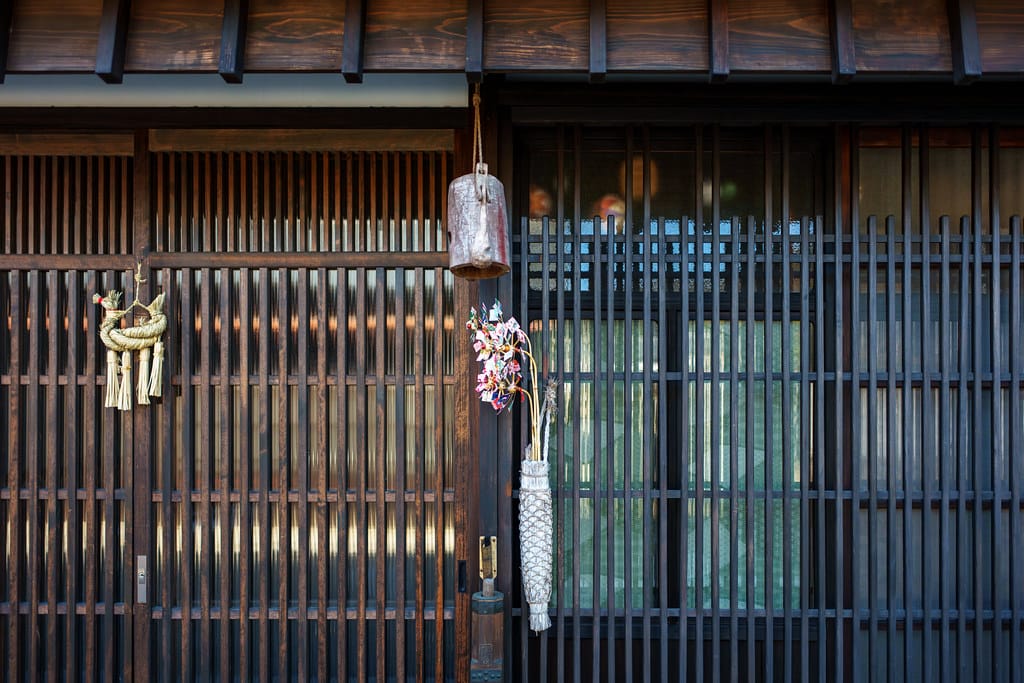
関宿 2026 6

東海道関宿 3
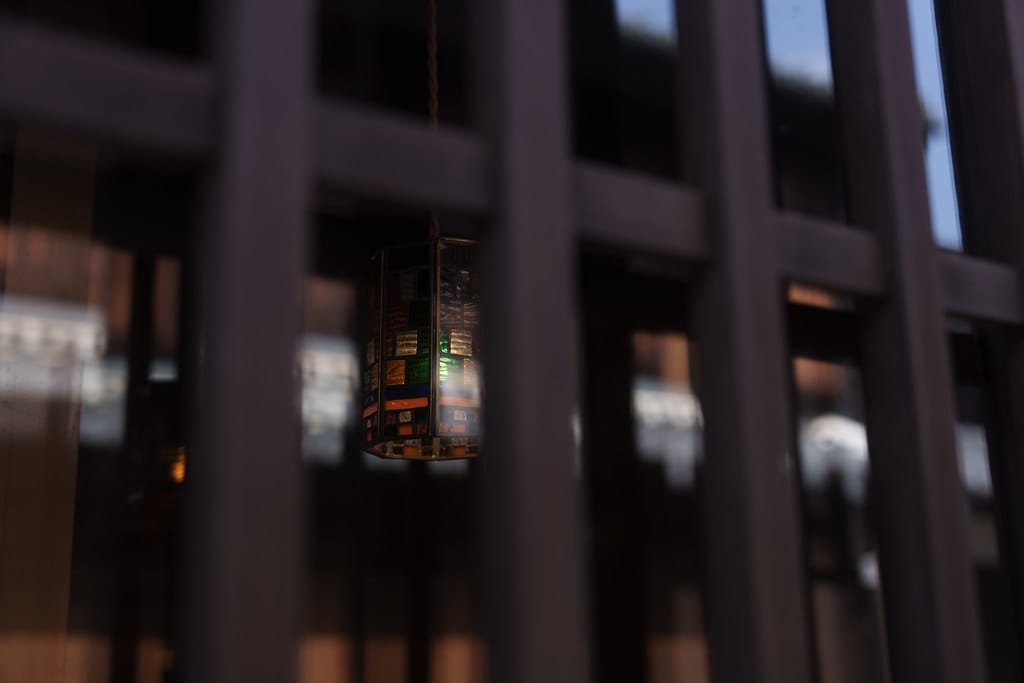
東海道関宿 1
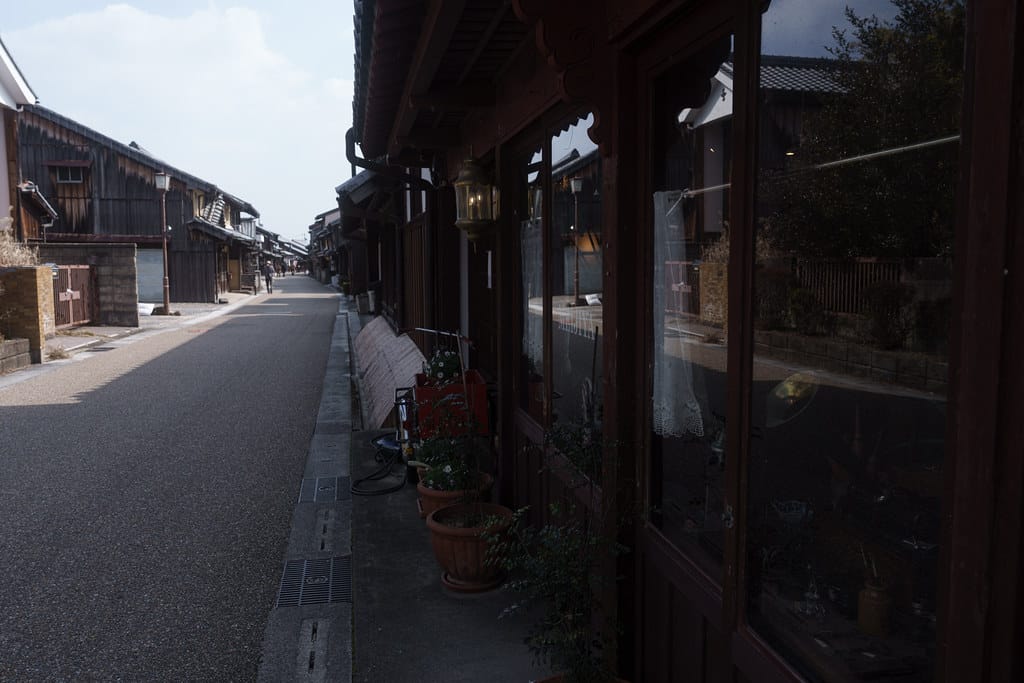
東海道関宿 2
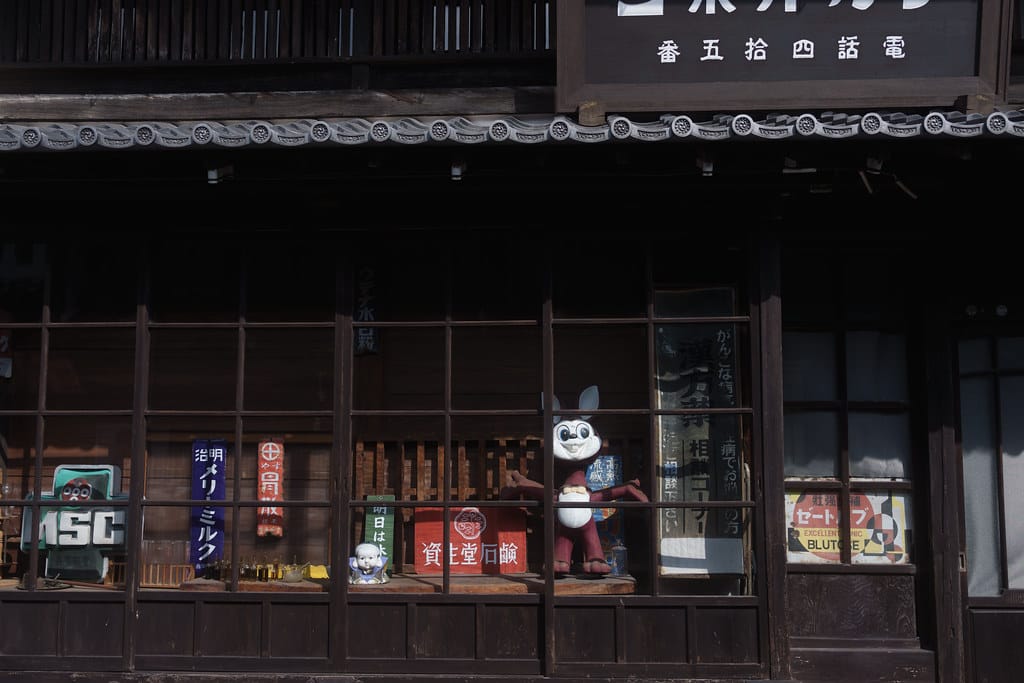
東海道関宿 8

What the Flickr feed does instead of an embed
A Flickr feed gallery pulls photos out of an account, gallery, group or album and stores them in WordPress. Each one arrives as a Social Item with its title, its description, the date it was taken and its views and comments counts, and the file lands in the Media Library. The ten above sit in justified rows at a target height of 250 pixels, drawn by the flickr-justified-gallery library the Justified layout is built on.
The alternative is Flickr’s own embed code, an iframe that keeps Flickr’s markup and Flickr’s lightbox and goes blank whenever Flickr does. An import leaves the files on your server, with your skin, your popup and a layout you can change without opening the Flickr account. Take the embed when the visitor should end up on the photo page, the import when the gallery has to match the rest of the site.
The four Flickr sources and their limits
The Flickr integration asks for an API key and one URL. Which URL depends on the Source, and Max Photos decides how much of the account comes across.
- Source accepts User Public Photos, Gallery, Group or Album, and each wants its own URL. User Public Photos takes a people URL, Album an albums URL.
- Max Photos runs from 1 to 200 and defaults to 30. Set the block to All Items and it shows up to that number.
- A non-commercial API key covers public photos. The secret is not needed.
- Title, description, the capture date, views and comments counts, every size of the file and the owner as the author all come across. Tags do not become categories.
- Display Comments Count and Display Views Count both work with Flickr. Like counts are not rendered for any network.
- Order by takes Date or Title, and Order Direction starts on DESC. The Filter element has nothing to list, which is why the demo scrolls rather than pages.
From an API key to a gallery in three steps
- Request a key on Flickr, then open Settings, Social Feeds, Flickr and click + Connect. Paste the key, choose the Source, paste the matching URL and press Save Changes.
- Saving starts the first import, which runs in the background. Open Visual Portfolio, Social Items to watch the photos arrive, and press Sync All Accounts if nothing has landed after a few minutes.
- Add a Visual Portfolio block, pick Social as the content source, then Flickr and the account. Set Layout to Justified and Row Height to 250. For Elementor or WPBakery, save the same settings as a Saved Layout and choose it from their Saved Layout dropdown.
Justified is free, the Flickr feed is not
The importer is the paid half. It holds the API key, runs the WP-Cron sync and writes the Social Items, and none of that is in the free plugin. The half that draws the rows on screen is. Pro ships the free plugin inside itself, so there is no second download.
- Free: the Justified layout with its Row Height and Tolerance, the lightbox, infinite scroll, the Fly skin, and galleries built from the Media Library or posts.
- Pro: the Social content source, the Social Feeds settings tab and the Social Items screen.
- Flickr is one of ten networks in the block’s Network dropdown, and one copy of Pro carries all ten.
- The whole split is set out in the free versus Pro comparison, and the plans are on the pricing page.
Questions about importing from Flickr
How soon does a new Flickr photo appear?
WP-Cron makes a full pass every 2 hours, and a five minute job refreshes one account whose data has gone past 3 hours. Saving the Social Feeds settings imports a new account at once. WP-Cron only fires when somebody loads a page, so on a quiet site a real server cron makes the timing predictable. See how often social feeds are updated.
Where do the photos end up on my server?
In wp-content/uploads/visual-portfolio-pro/flickr/, registered in the Media Library under the Social filter. The post that owns each file is a Social Item, a post type of its own that is not public. See where social images are stored.
Can I rewrite a title after the import?
Yes. Visual Portfolio, Social Items lets you change the title, the content, the featured image and the Original Post URL, and a sync only adds posts it has not seen, so the edit survives. That cuts both ways. A caption you correct on Flickr never reaches an item that already exists, and only Purge Cache fixes that, by deleting the account’s Social Items and importing them fresh. More in editing imported social posts.