A Visual Portfolio posts grid shows WordPress posts as cards with a category filter. Unlike Query Loop, the filter swaps posts without reloading the page.



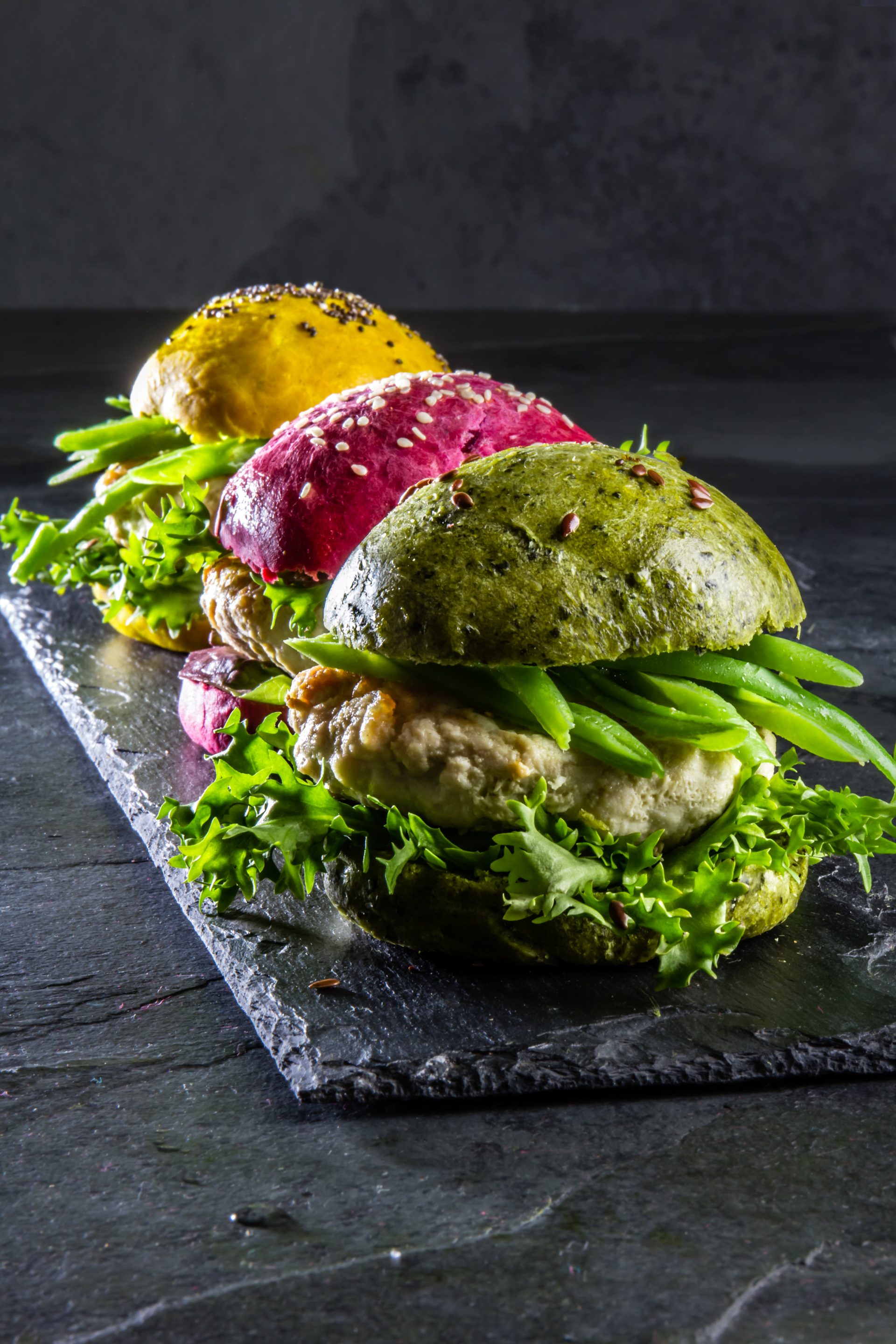

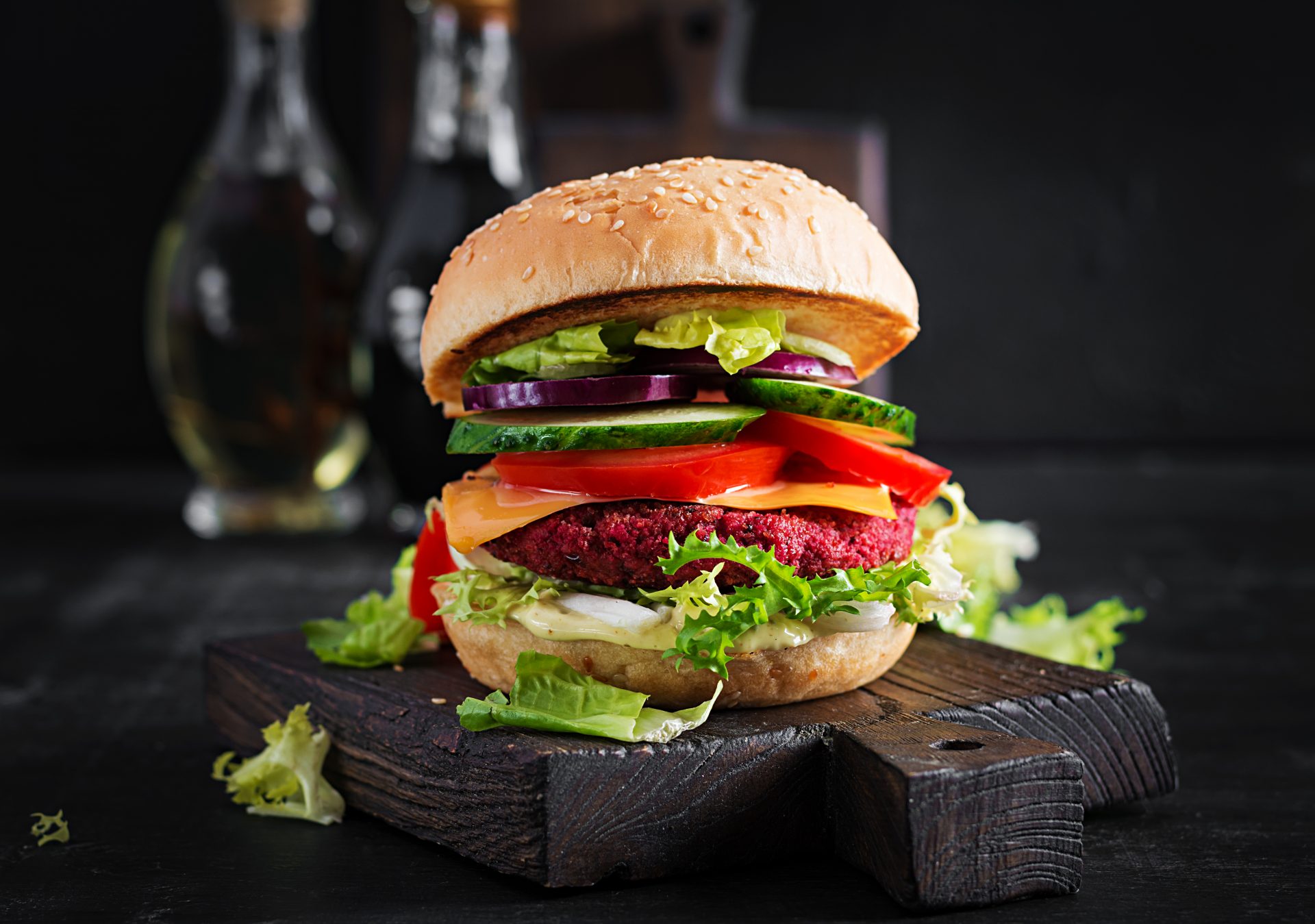
What a posts grid replaces
A posts grid takes the list your theme prints on the blog page and lays it out as cards. Featured image on top, then the title, the meta you switch on, and a trimmed excerpt. The items are real WordPress posts, pulled by the Posts content source, which reads any public post type, pages and products included.
The alternative is the Query Loop block, or the archive template your theme ships. Both are fine until you want a category filter that swaps the items without reloading the page, or the same list of posts sitting inside an ordinary page. This block carries its own query and writes its state into the address bar as vp_filter and vp_page, so a filtered or paged view can be linked to. Two of these blocks on one page can also be told not to repeat each other’s posts.
The query and what each card shows
The grid above is the plain Post type with one taxonomy picked and six posts a page. Content Source holds the query, Skin holds the caption.
- One post type, several of them at once, Manual Selection, a Custom Query string in WP_Query form, or Current Query for archive templates.
- Taxonomies, grouped by taxonomy, with Taxonomies Relation OR or AND. OR takes posts in any chosen term, AND only posts carrying all of them.
- Order by Date, Title, ID, Comments Count, Modified, Menu Order, Manual Selection or Random. Date and DESC are the defaults.
- Items Per Page sits in Content Source, General Settings, and defaults to 6. The grid above appends the next six with Load More, and Paged and Infinite are the other types.
- In the Grid layout, Columns run 1 to 5 and default to 3, and Gap takes 0 to 200 px, 15 by default.
- Display Views Count, Display Reading Time and Display Comments Count exist for the Posts source only. Display Excerpt trims to Excerpt Words Count, 15 words by default. Display Date prints a plain date or “3 days ago”.
Building the same grid on your own posts
- Insert the Visual Portfolio block, open Content Source and choose Posts. Pick the post type, then narrow the result under Taxonomies. Items Per Page sits in General Settings on the same panel.
- Open Layout, set it to Grid and choose Columns. In Skin pick Classic, which puts the caption under the image, then switch on Display Date, Display Views Count, Display Reading Time and Display Excerpt under Caption, Elements.
- Back in the Layout panel, click the plus in the Start position and add Filter, then the plus in the End position and add Pagination. Both reload the items over AJAX.
Nothing above this needs a license
The Posts source, the grid, the filter and all three pagination types ship in the free plugin on WordPress.org. Pro is the same plugin with the paid options switched on, not a second plugin you install beside it. The full split is in the free versus Pro table, and the license tiers are on the pricing page. Pro adds four things here:
- Query filters for Authors and for publishing date, including a custom After Date and Before Date.
- Exclude Posts Without Thumbnail, so a post with no featured image never leaves a hole in the grid, and Ignore Sticky Posts.
- Quick View, which opens the post itself in a frame inside the popup, as the Posts Quick View Popup demo does.
- AJAX Cache and Preload, under Settings, General, which caches responses in the browser and fetches the hovered filter before the click.
What people ask about post grids
Where do Views and Reading Time come from?
The plugin counts a view each time a single post page loads, or reads it from Post Views Counter when that plugin is active. Reading Time divides the word count by 265 words per minute, 500 characters per minute on Chinese, Japanese and Korean sites, and prints “< 1” under a minute. Both exist for the Posts source only. See how Views and Reading Time are counted.
How do I add a Read More button?
Only the Classic skin has one. Display Read More Button sits in Skin, Caption, Elements and starts at Hide. Set it to Always Display, or to the More tag mode, which prints it only on posts that carry a More tag. Every other skin links the whole card to the post instead, as adding a Read More button explains.
Can I use this without the Portfolio post type?
Yes, and nothing in this grid touches it. Switch off Register Portfolio Post Type under Settings, General. The admin menu shrinks to Saved Layouts and Settings, and grids built from posts or the Media Library keep working. See using the plugin without the Project post type.